Stop sorting your LinkedIn posts by impressions and calling the top row your winner. That's the most popular advice out there, and it's how you end up repeating posts that were shown to the same people twice, reached nobody new, and produced no useful next step. A good LinkedIn Analytics Report Template doesn't crown a trophy post. It stores the counts behind every rate, tells you whether you reached new people, and forces one clear experiment before you publish again.
Columns for a LinkedIn Analytics Report Template
Build a sheet you'll reuse, not a pretty export you'll abandon next month. I would reject any template that starts and ends with impressions, because that single column can't tell you who saw a post, how often they saw it, or whether they did anything.
Start with identity columns. Log the reporting window, account type, post date, format, and topic before you log a single metric. The LinkedIn combined post analytics help page notes you can select reporting windows from 7 to 365 days and compare total impressions with total engagements across short-form posts, images, videos, events, polls, and articles. Pick one window, usually 30 days for a regular poster, and don't change it when results look weak.
What each count actually means
LinkedIn defines an impression as the number of times content was displayed on screen, not the number of unique people who saw it. Label that column as an estimate, because treating it as unique reach makes every later conclusion shakier. If you need a plain explanation of that distinction for a client or manager, link your notes to a guide on LinkedIn post impressions rather than explaining it differently each month.
Members reached is different. It counts distinct viewers and excludes repeat displays. Keep both columns, because their ratio tells you whether repeat exposure is inflating your headline number.
Store the numerator and denominator for every rate. A lonely percentage can't be audited, recalculated, or compared fairly next quarter.
Personal-post engagements include reactions, comments, saves, sends, and reposts. Company Page interactions use a different definition, so don't put profile and Page rates in one blended ranking. When several people owe you numbers each cycle, it's worth setting SLAs for social reporting so exports, definitions, and deadlines don't drift between owners.
Copy these headers into Google Sheets or Excel exactly as they are:
| Column | What to enter | How to calculate or label |
|---|---|---|
| Date range | 7, 30, 90, or 365 days | Use the same window every cycle |
| Account type | Personal profile or Company Page | Separate tabs because engagement definitions differ |
| Post date and format | Date plus text, image, multi-image, document, video, poll, or article | Segment winners by format later |
| Topic | Thought leadership, recruiting, product education, or demand generation | Group posts before ranking them |
| Impressions | Estimated on-screen displays | Label as an estimate, not unique people |
| Engagements | Reactions, comments, saves, sends, and reposts on personal posts | Page interactions are clicks, reactions, comments, and shares |
| Clicks and follows | Post clicks plus new follows | Feeds click-through rate and audience quality |
| Members reached | Distinct viewers, repeats excluded | Do not swap with impressions |
| In-network share | Percent of impressions inside the existing network | High share means resonance with weak discovery |
| Out-of-network share | Percent of impressions outside the network | Rising share means distribution beyond followers |
| Engagement rate | Engagements divided by impressions | Store both counts, then multiply by 100 |
| Click-through rate | Clicks divided by impressions | Store both counts, then multiply by 100 |
| Reach frequency | Impressions divided by members reached | Above 1 means repeat exposure inflated impressions |
| Next action | One experiment for the next cycle | New hook, format swap, or a different publish time |
The last column matters most. If a row doesn't end with one experiment, you've made an archive, not a reporting system.
Report Layout and Sample Dashboard
Give the workbook four tabs and don't let their jobs blur. A single giant tab is where profile numbers, Page numbers, monthly totals, and half-finished ideas go to get mixed together.
The Profile tab holds personal-profile posts and uses the personal engagement definition. The Page tab holds Company Page posts only, with clicks, reactions, comments, and shares counted as interactions. Keeping them apart sounds fussy until you try to explain why an executive's rate jumped after someone pasted Page data into the wrong sheet.
Four tabs with fixed jobs
| Tab | Scope | Key fields | Refresh |
|---|---|---|---|
| Profile | Personal profile posts | Full column set with personal engagement definition | Each cycle |
| Page | Company Page posts | Page definition, clicks, reactions, comments, shares | Each cycle |
| Cycle Summary | One row per reporting window | Post count, total impressions, total engagements, engagement rate, best and median post, in-network share, not-comparable flag | Each cycle |
| Experiments | One row per test | Hypothesis, action cell, next export date, result | Weekly or monthly |
The Cycle Summary tab is your dashboard source. Every chart should read from it, so the sheet and the presentation never show different numbers because someone edited a chart label by hand.
Build only three charts at first:
- Engagement rate by cycle: Use a line chart so you can see direction across identical windows, not just one good month.
- Median engagement rate by format: Use bars and prefer the median, because one viral document shouldn't make every document look strong.
- In-network versus out-of-network share: Use a stacked bar by month to show whether you're preaching to followers or finding new viewers.
Keep tab names, column order, and window length fixed. You'll thank yourself when you compare cycles row for row instead of rebuilding formulas and guessing which version was right.
How Long to Keep Each LinkedIn Metric
Disappearing data is a calendar problem before it's an analytics problem. You can build the cleanest chart in the world, and it'll still break if LinkedIn stops holding the field you charted.
The LinkedIn post analytics help page states that post discovery and engagement counts for many content types are available for up to 1,000 days, while demographic breakdowns are available for 180 days and members-reached data for 400 days. That's a big spread. Your post-level archive can run for nearly 2.7 years, but your audience demographics vanish if you don't export them at least every six months.
Put those limits inside the template, not in a forgotten note in Slack. Add a small data-quality box on the Cycle Summary tab with the extraction date, source view, access tier, and denominator used.
| Data | How long it lasts | What the template should do |
|---|---|---|
| Post discovery and engagement counts | Up to 1,000 days, about 2.7 years | Keep a post-level archive for long comparisons |
| Demographic breakdowns | 180 days | Export or archive at least every six months |
| Members reached | 400 days | Pull this field before the window closes |
| Impression figures | Ongoing, but estimated rather than exact | Label the cell as an estimate, not unique reach |
| Free competitor Page tracking | One Page from 15 October 2025, down from nine | Do not trend old nine-Page benchmarks against one slot |
| New or moved metrics | Changes such as comment impressions or a paid-only view | Log source, extraction date, access tier, and a not-comparable flag |
When a month is not comparable
Coverage of the competitor change in PPC Land's report on LinkedIn limiting competitor analytics says LinkedIn reduced free Company Page competitor tracking from nine pages to one beginning October 15, 2025, while Premium pages retained broader comparison features. Don't trend a nine-Page benchmark against a one-Page slot and call the gap a performance drop. It isn't one. It's a ruler change.
Use a not-comparable flag whenever LinkedIn adds a metric, moves one behind a paid view, or changes what a count includes. I would rather show a blank comparison with an honest flag than a confident chart built on two different definitions.
Archive rule: If a field can disappear, the export date belongs on your calendar, not in your memory.
Also report a spread, not just an average. Show your best post and your typical post for the cycle. One unusual multi-image hit can drag a monthly average upward and hide the fact that most posts did nothing. A median won't flatter you, and that's exactly why it's useful.
For Page rows, keep the rate honest by storing impressions, clicks, reactions, comments, shares, and total interactions separately, then calculating interactions divided by impressions. If someone later asks what the percentage meant, you can answer without digging through old screenshots.
Fill One Reporting Cycle
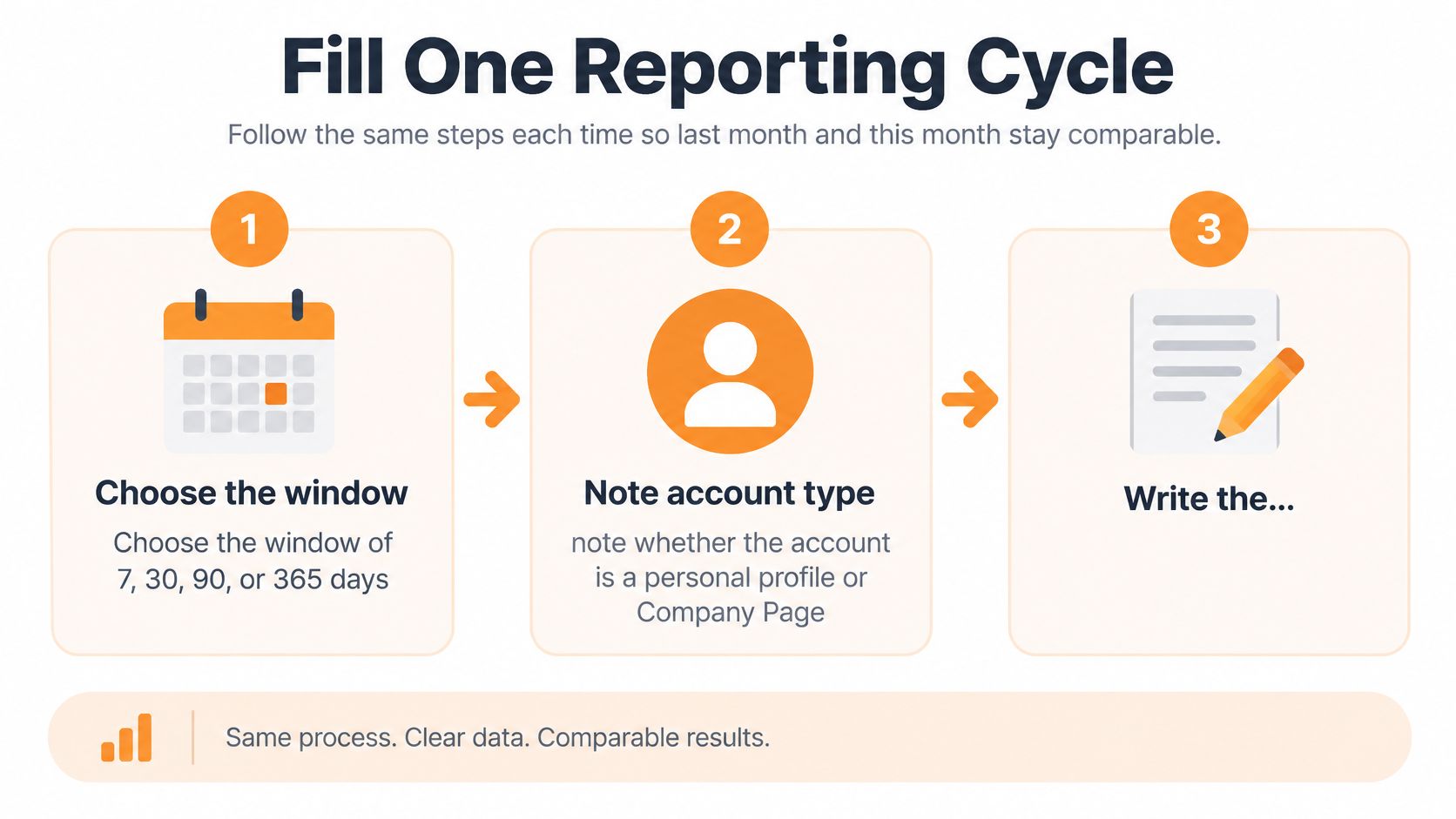
Use the same sequence every time. The order feels boring, and boring is the point, because a changed order produces a changed report.
This visual sums up the first decisions you need to lock before you touch the export:
The LinkedIn analytics definitions page supports the key distinction in this process, impressions are estimated while members reached represents distinct viewers and excludes repeat displays. Don't treat those fields as interchangeable at any step.
The eight moves in order
- Choose the window: Pick 7, 30, 90, or 365 days, note whether it's a personal profile or Company Page, and write the audience goal in plain words.
- Export every post: Paste date, format, topic, impressions, members reached, reactions, comments, reposts, saves, clicks, and follows into the matching tab.
- Label impressions as estimates: Do this in the header itself so nobody copies the number into a deck as unique reach.
- Calculate three rates: Use the formulas in the column table for engagement rate, click-through rate, and reach frequency on every row.
- Enter the network split: Add in-network and out-of-network impression shares before you rank anything.
- Group before sorting: Segment by format, topic, and cadence first. A recruiting document and a product text post aren't trying to do the same job.
- Write one test per insight: Try a new hook on a strong topic, a document against a text post, or a shifted publish time. One change, not three.
- Save your audit trail: Record the extraction date and the access tier you exported from.
Say you're a solo founder posting three times a week. Run a 30-day Profile tab and don't build the Page tab until you publish from a Page. If you're on a Page team, duplicate the structure but keep the definitions separate.
Stop when the Cycle Summary has one completed row. Not a perfect dashboard, not a board deck. One honest row you can compare with next month.
Benchmarks That Tell You the Rate Is Real
Before you celebrate or panic over a rate, ask one question. Divided by what?
That denominator trap catches almost everyone. A rate per follower and a rate per impression can describe the same post and produce wildly different percentages, and both can be correct. If you're fuzzy on the click version of this math, understanding click-through rate is a useful refresher before you start tagging rows.
In its benchmark report, the Rival IQ LinkedIn benchmark analysis found that in 2023, the median LinkedIn brand achieved a 0.41% engagement rate per post by follower, based on more than 58,000 LinkedIn posts published from January through September 2023. That figure is useful for audience-size comparisons. It is not interchangeable with an impression-based rate.
Impression-based numbers sit much higher. According to Statistics Fundamentals' LinkedIn statistics roundup, in 2024, LinkedIn company pages averaged approximately a 3.85% engagement rate by impressions, based on Socialinsider's analysis of 1 million posts from 9,000 company pages.
A broader cut is higher still. In a Socialinsider LinkedIn post sharing its benchmark results, Socialinsider reported that in 2024, LinkedIn's average engagement rate by impressions reached 5.00%, a 30% year-over-year increase, based on 1 million posts from 9,000 active business pages.
Format changes the picture again. In 2024, multi-image LinkedIn posts achieved a 6.10% average engagement rate, while native document posts reached 4.70%, according to Socialinsider benchmark figures reported by Carney.
| Benchmark | Figure | What it measures | When to use it |
|---|---|---|---|
| Median brand engagement per follower, 2023 | 0.41% | Engagements per post divided by followers | Audience-size comparisons. Rival IQ, 58,000+ posts, January–September 2023 |
| Company page engagement by impressions, 2024 | about 3.85% | Interactions divided by impressions | Company Pages. Socialinsider via Statistics Fundamentals, 1 million posts, 9,000 pages |
| Average engagement by impressions, 2024 | 5.00% | Engagements divided by impressions, up 30% year over year | Active business pages. Socialinsider, 1 million posts |
| Multi-image posts, 2024 | 6.10% | Average engagement rate | Format comparison. Socialinsider via Carney |
| Native document posts, 2024 | 4.70% | Average engagement rate | Format comparison. Socialinsider via Carney |
Tag your own rows honestly
Mark each of your posts above, near, or below the closest benchmark, and write the denominator beside the tag. Say a founder with a small, loyal following clears the per-follower median easily but looks ordinary by impressions. That's not a contradiction. It means the existing audience responds well while distribution per showing is unremarkable.
Don't average a viral multi-image post with a plain text post and call the result your account benchmark. You're hiding the only useful finding, which format carried the result. If you're building a wider comparison set, our guide on how to benchmark against competitors fits naturally at this stage.
One strong format across one cycle is a hint. The same format ahead across two identical windows is a signal worth changing your calendar for.
Stop when every row is tagged against one matching benchmark. Chasing a single magic percentage is how people end up optimizing for a number their audience never cared about.
What to Change After You Read the Sheet
The most common misread is in-network applause. A post gets strong engagement, everyone feels good, and nobody notices that almost all impressions came from people who already follow the account. That post resonated. It barely traveled.
This summary frames the decisions that should follow each pattern in your data:
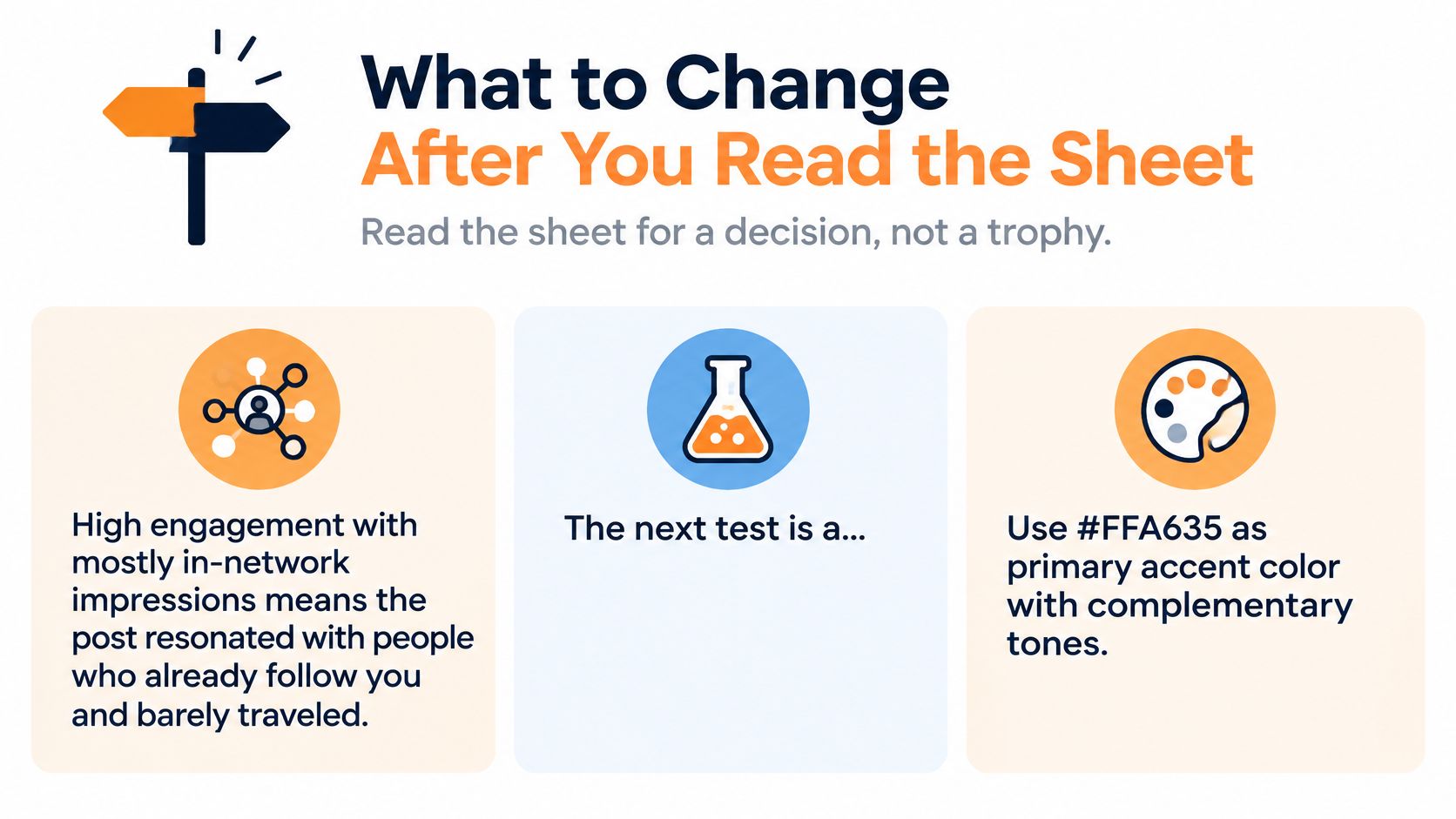
When you see high engagement with mostly in-network impressions, don't write more of the same caption. Test a hook or format built to be saved or reposted, because those actions give people a reason to carry the post beyond your current audience.
A rising out-of-network share with a weak click-through rate tells a different story. New people are seeing you, but you're not giving them a clear next step. Tighten the line that asks for a click, a follow, or a reply, and make sure the promise in the post matches what they'll get.
Reach frequency well above 1 means the same people saw the post more than once. Don't celebrate that as new audience growth. Either change the angle for a fresh segment or accept that you're deepening familiarity with current viewers, which is fine if that's the actual goal.
The quiet post that mattered more
Some valuable results never appear in a native post chart. A modest post can prompt profile views, employee reshares, direct messages, or a sales conversation with the right decision-maker. Log those as assisted signals in a notes column, and call them correlation, not proof that the post closed revenue.
If you want a fuller framework for connecting activity to business results, read our guide on measuring social media ROI before you add pipeline columns. Keep activity, audience quality, conversion, pipeline, and revenue in separate sections, with the attribution window and conversion definition written down.
That separation matters at platform level too. In its measurement guidance, LinkedIn's marketing measurement article reports that its Conversions API produced an average 31% lift in attributed conversions in a beta study, while highlighting full-funnel reporting and Revenue Attribution Reports. Attributed is the key word. Better tracking can reveal influence you'd missed, but it doesn't turn every touch into causation.
This walkthrough is worth watching before your next reporting session if you want a second view on reading post data:
Update the sheet weekly if you publish several times a week, and monthly if you post about twice a week. I would cap the response at three experiments. More than that and you won't know which change moved the result, which means you'll learn nothing while feeling very busy.
Fill This Week and Pick One Experiment
Block 45 minutes this week. Fill one 30-day Profile or Page tab, use last month as your comparison window, and work through the cycle steps in order without redesigning the sheet halfway through.
Then check each row against the benchmark table. Every rate gets tagged above, near, or below a matching figure, with its denominator written beside it. If a row can't be tagged fairly, say so in the notes instead of forcing a comparison.
Circle the three action cells you'll run, and no more. Put the next export on your calendar now, well before your demographic data ages out, and set the Cycle Summary to flag any month where a definition or access tier changed.
When the next export arrives, check one thing first. Did the experiment move in-network resonance, out-of-network discovery, or clicks? Write the answer in the Experiments tab, even if the answer is that nothing moved. A recorded failure saves you from running the same test again in three months because nobody remembered the result.
If drafting and scheduling are what keep you from publishing consistently enough to have data worth reporting, our Optimize, Schedule and Recycle tools cover scheduling posts, real-time statistics, viewing best posts based on statistics, and recycling your best content, while our Done For You service includes a monthly performance report. One user put the upside plainly, "My impressions went from 2K to 25K in just one month. This tool is a real winner!", Emma R. Nice results still need your sheet, though. It's the record that decides what changes next, and no drafting tool can make that call for you.
Build your LinkedIn Analytics Report Template this week, then use RedactAI to draft, schedule, and recycle the posts your experiments call for, all in your own voice. Start free, fill one honest 30-day cycle, and let your best-performing topics tell you what to publish next.