You published three posts this week. One got 2,000 impressions and barely any comments, another reached half as many people and started two real conversations, and you're not sure which one worked. That's the normal problem with LinkedIn post analytics. The numbers are useful, but they're estimates, they measure different things, and ranking posts by impressions alone will steer you toward reach even when your goal is credibility, profile visits, or leads.
The Metrics That Matter on Every LinkedIn Post
Six or seven numbers carry most of the story. Impressions on their own rarely do, because they tell you a post was shown, not that anyone read it, trusted it, or acted on it.
Core LinkedIn Post Metrics and How to Calculate Them
| Metric | What It Tells You | How to Calculate It | Where to Find It |
|---|---|---|---|
| Impressions | How often the post was shown; an estimate | Count from the post's analytics | Post analytics panel |
| In-network share | Reach from followers and connections | In-network impressions ÷ total impressions × 100 | Calculated from post analytics |
| Out-of-network share | Reach from people outside your network | Out-of-network impressions ÷ total impressions × 100 | Calculated from post analytics |
| Reactions, comments, reposts | Raw interaction volume | Add each count separately | Post analytics |
| Engagement rate | How well exposure turns into interaction | (Reactions + comments + reposts) ÷ impressions × 100 | Calculated from your export |
| Clicks | Interest strong enough to open a link or profile | Clicks ÷ impressions × 100 | Post analytics |
| Follower change | Whether the post added followers | Followers gained in 7 days after posting | Follower analytics or manual count |
The LinkedIn help documentation on post analytics defines an impression as the number of times a post was shown on the platform, while warning that this figure is an estimate rather than a precise count. Treat a gap of a few dozen impressions between similar posts as noise. What matters is the pattern across several posts, not a tiny lead on one Tuesday.
That same documentation separates in-network impressions from followers or connections and out-of-network impressions from people outside your existing network. Say two posts both get 3,000 impressions in your log. One is 85% in-network and mainly reached people who already know you, while one at 40% in-network found new people. Those aren't the same result, even though the headline number matches.
Engagement rate fixes another distortion because it uses impressions as the denominator. A hypothetical post with 15 reactions on 500 impressions converted exposure better than one with 40 reactions on 5,000 impressions. For Page content, LinkedIn counts clicks, reactions, comments, and shares as interactions, and its broader totals also include saves, sends, and reposts, minus interactions people later remove. Keep those counts separate in your sheet, so a post that earns comments doesn't look identical to one that only collects quick reactions.
If your goal is to turn passive followers into active participants, comments, clicks, profile visits, and follower change matter more than raw exposure. That resource is a useful next read once you know which posts already prompt action.
Start here: Build a sheet with the columns in the table and log every post for 30 days before you judge anything.
What a Normal Engagement Rate Looks Like
A good rate depends on format, so compare like with like. Don't grade a link post against a document post and call the link post a failure.
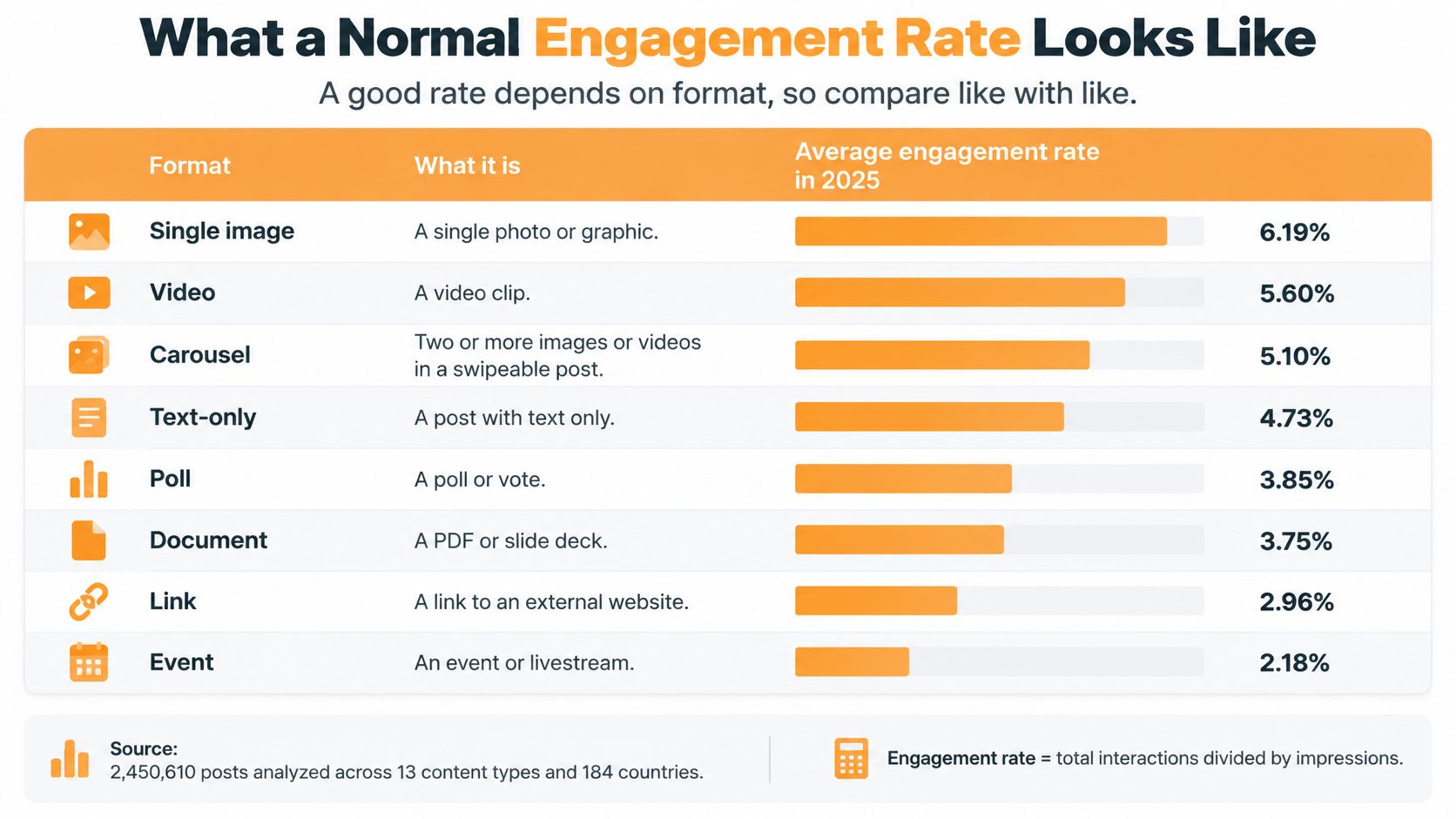
2025 Average Engagement Rate by LinkedIn Format
The Socialinsider LinkedIn benchmark reports 2025 rates of 7.00% for native documents, 6.45% for multi-image posts, 6.00% for video, 5.30% for images, 4.50% for text, 4.20% for polls, and 3.25% for link posts.
| Format | 2025 Average Engagement Rate | Read It As |
|---|---|---|
| Native documents | 7.00% | Top of the range; worth the design time |
| Multi-image posts | 6.45% | Strong and quick to produce |
| Video | 6.00% | High effort; compare only with your own video posts |
| Images | 5.30% | Solid baseline for single visuals |
| Text | 4.50% | Your floor for writing-only posts |
| Polls | 4.20% | Good for conversation, weaker for reach |
| Link posts | 3.25% | Expect less; judge by clicks instead |
That dataset covers brand posts from large accounts, so executive profiles, consultants, and niche creators may sit above or below these numbers. Use them as direction, not a pass or fail line. Other reporting shows why context matters, since the ContentIn LinkedIn engagement benchmarks describe a dataset of 100,459 professional posts with a 2.29% median engagement rate, a 3.62% mean, and a 7.65% 90th percentile.
Your better benchmark is your own rolling median from your previous 20 to 30 posts, ideally split by format. Say a consultant sees a document post at 3.1% and assumes it flopped against the industry table. Then they check their own document median at 2.2% and realize it was a clear win for their audience.
For reach context, Statista's LinkedIn post data puts the average LinkedIn post at approximately 1,057 impressions in 2024, so a post below that isn't automatically weak. Check it against your median first.
This is also why I favor engagement over follower counts for brands when you're judging whether content is building a real audience. For a deeper formula walkthrough, see this guide to calculating your LinkedIn engagement rate.
Write down your median for the three formats you use most. Check every new post against those three numbers.
How to Run a Weekly Post Review in 30 Minutes
A weekly review takes about 30 minutes and needs eight steps. It works because you make the same comparison, at the same time, every week, instead of reacting to whichever post you checked last.
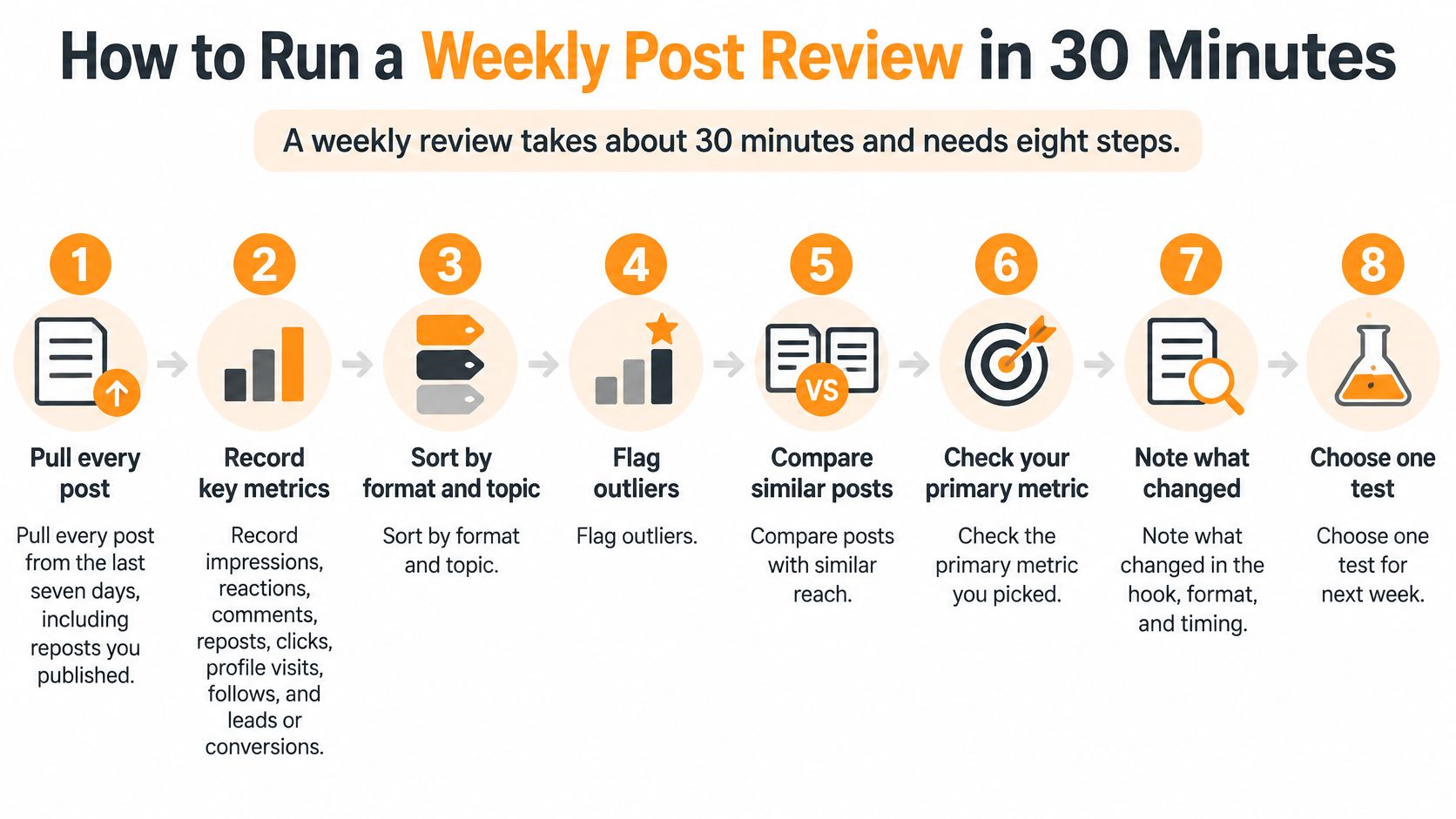
The Eight Steps
- Pull the full week: Collect every post from the last seven days, including reposts you published, so you don't only review the ones you remember.
- Log one row per post: Record impressions, reactions, comments, reposts, clicks, and in-network share while the numbers are easy to find.
- Calculate engagement rate: Add reactions, comments, and reposts, divide by impressions, and multiply by 100 for every row.
- Compare with your baseline: Judge each post against your rolling median from the previous 20 to 30 posts, not against last week's average, which one spike can distort.
- Tag the content: Mark format, topic, and hook type on each row, because patterns only show up later if you label them now.
- Read the audience mix: Note whether reach was mostly in-network or out-of-network, since strong resonance with followers means something different from discovery by strangers.
- Choose two follow-ups: Pick one post to repeat with a new angle and one format to rework or drop, rather than rewriting your whole plan.
- Write the decision: Add one sentence to your log explaining what you'll do next, so next week starts from a decision instead of a blank page.
What a Useful Decision Looks Like
Say a carousel in your sheet records 6,200 impressions and 4.1% engagement against your 2.6% baseline. That becomes next week's template, with a fresh topic and the same structure. A Tuesday text post at 1.1% gets no repeat yet, but you don't kill text posts based on that single result.
One weak post tells you almost nothing about a format. Three weak posts with the same hook, topic, or timing start to tell you something.
Keep the review boring and repeatable. Open the same sheet, fill the same columns, compare with the same baseline, and write the same one-sentence decision. After a month, you'll have topics and hooks grouped well enough to spot repeats. After two months, you'll know which strong posts were one-offs and which formats keep earning comments or profile visits.
I would also add a short note beside unusual posts. Write down if someone with a larger audience commented, if you posted during a holiday, or if the topic tied to breaking news. Those notes stop you from crediting the format for a result that came from timing or borrowed reach.
Don't judge a format from one post. The review only pays off when you run it every week, including the quiet weeks you'd rather skip.
Testing Changes Without Fooling Yourself
One post is an anecdote, not evidence. If you change your posting time, hook, and format in the same week and numbers jump, you don't know what helped.
The image below shows the kind of side by side log I want during a test, with notes close to the numbers.

A Cleaner Test Setup
- Pick one objective: Choose reach, conversation, profile visits, leads, or conversions, then name one primary metric for that objective before you publish.
- Build matched pairs: Keep topic, length, audience, and media type similar, and change only one factor, such as posting time, opening line, call to action, or format. If timing is the variable, this LinkedIn post time guide can help you choose the slots to test.
- Alternate the order: Run the test for four to six weeks and rotate which version goes first, so one option doesn't always get your best day.
- Use a fixed checkpoint: Measure every post at the same maturity point, such as 72 hours after publishing, because a two day old post and a ten day old post aren't comparable.
- Compare medians: Look at medians and spread, not just averages, because one viral post can drag a mean upward and make a weak group look strong.
- Get enough posts: Aim for 20 to 30 posts per comparison group where you can, and keep viral outliers in a separate list for separate analysis.
- Watch for confounders: Don't credit posting time if the topic, audience, or a big commenter changed at the same moment.
The video below is worth watching before you set up your first test, especially if you tend to change three things at once.
Noise is the other trap. LinkedIn treats its numbers as estimates, and totals can fall when people remove reactions or comments. A swing of one or two reactions on a small post in your log means nothing, even if the percentage change looks dramatic.
If you publish fewer than ten posts a month, you'll reach a full comparison group slowly. Run the test for the full six weeks, label any group that's still short as inconclusive, and don't declare a winner. The output you want sounds like this example sentence: document posts outperformed text by 35% across your last 24 comparable posts. That's specific, limited to your account, and honest about the sample.
Keeping Post Data Past LinkedIn's Time Limits
Your history doesn't stay on LinkedIn forever. Different data types expire on different schedules, so a year long comparison can break if you assume everything will still be there.
LinkedIn Analytics Retention Windows
| Data Type | Retention Window |
|---|---|
| Demographic breakdowns | 180 days |
| Video performance and viewer demographics | 365 days |
| Most discovery and social-engagement counts | 1,000 days |
| Members-reached data | 400 days (newer documentation) |
The LinkedIn documentation on analytics retention lists demographic breakdowns as available for only 180 days, video performance and viewer demographics for 365 days, and most other discovery and social-engagement counts for 1,000 days. Newer documentation also identifies a 400-day window for members-reached data.
Say a ghostwriter needs to prove twelve months of growth to a client. They build the before and after deck, then find video viewer demographics from the first months are gone. The growth story may still be true, but they can't show whether the audience seniority, industry, or company size improved, which is often the part the client cares about.
Current follower demographics don't solve that problem. They describe who follows you now, and the available time range differs by metric and view, so they aren't a complete history of who each old post reached.
Three habits protect you:
- Export monthly: Save post level impressions, engagements, format, timing, and post text in a file you control.
- Snapshot quarterly: Record follower demographics and audience mix before the shorter windows close.
- Separate expiring data: Mark which columns LinkedIn will remove early and which counts stay available longer.
Set a reminder for the first of each month to export last month's posts. Save the file outside LinkedIn, with the month in the filename.
Monthly Report Template You Can Copy
Your monthly report should fit on one page and keep the same order every month. That consistency lets you or a client compare months quickly without learning a new layout each time.
The order is deliberate. The headline and median come first because they answer whether the month improved. Top and bottom posts explain why, then audience mix, profile visits, and followers show whether the reach was useful or just broad. Experiments and next actions close the loop.
Monthly LinkedIn Analytics Report Template
| Report Section | What to Enter | Example Entry |
|---|---|---|
| Headline | One sentence on the biggest change this month | Median engagement rose as carousels replaced link posts |
| Volume and cadence | Posts published and posting days per week | 12 posts, 3 per week, two missed weeks |
| Median engagement rate | This month against the prior month | 3.4% this month against 2.7% last month |
| Top three posts | Format, topic and hook for each | Carousel on pricing; story about a lost client |
| Bottom three posts | What they had in common | Link posts, all published on Monday morning |
| Audience mix | In-network vs out-of-network share | 58% in-network, 42% out-of-network |
| Profile visits and followers | Change from the prior month | Profile visits up, 46 new followers |
| Experiments | Test running, sample size and result status | Shorter hook test, 11 posts, inconclusive |
| Next month's three actions | One to repeat, one to drop, one to test | Repeat carousels; drop link posts; test a shorter hook |
Those example entries are illustrative, so replace them with your own numbers. If an experiment didn't reach enough comparable posts, write inconclusive instead of forcing a winner to make the report look decisive.
If you want help to turn social metrics into actionable insights, that guide pairs well with this one page format. Keep your supporting sheet attached, but don't send clients forty rows when they asked what changed and what happens next.
Reporting rule: One page for decisions, one sheet for evidence. Don't mix them.
Copy the table into a document, fill in last month's data, and send it to yourself or your client before the first Monday of the new month.
Turn Your Numbers Into Next Month's Content Plan
Use a simple decision rule: pick three things to repeat, one to drop or rework, and one experiment. Write them down before you publish anything else, so you don't chase last week's spike. A content calendar for LinkedIn makes those choices visible across the month.
- Repeat with proof: A format qualifies only if it beats your own rolling median for three posts in a row, not just once. Keep the structure, change the topic or angle, and watch whether comments and profile visits hold up.
- Drop or rework carefully: Choose the format that fell below your median across at least three comparable posts. First check whether those weak posts shared a publication time, topic, or rushed hook, because the format may not be the actual problem.
- Test one flagged change: Change one thing your weekly review surfaced, such as the opening line of your best format, while keeping the topic similar. Give it enough comparable posts before you decide again.
Say a consultant repeats carousels, drops link posts, and tests a shorter hook for four weeks. That's a plan they can evaluate at month end. Avoid the main mistake of dropping a format after one weak week, especially when the sample is tiny and the numbers are estimates.
This week, build the sheet, log your last seven posts, and hold your first review on Friday.
Turn your review into drafts faster with RedactAI, which helps you generate LinkedIn posts in your own voice, schedule them, and track performance so your next test starts from what already worked. Bring your sheet, pick your repeat, drop, and test choices, and start building next month's posts from evidence instead of guesswork.