You see a post on LinkedIn that nails a problem you're dealing with right now. It has a clean framework, a smart comment thread, maybe even a line you want to borrow as inspiration later. You think, “I'll come back to this.”
Then you refresh, get pulled into messages, close the app, and that post is gone.
That's why people search for how to save a post on LinkedIn. Not because the button is hard to click. Because losing useful ideas is expensive when you use LinkedIn for learning, prospecting, hiring, or content.
The funny part is that saving the post is easy. Finding it again is where the process becomes challenging. LinkedIn hides saved items behind menus that don't feel obvious, and most basic tutorials stop right after “click the three dots.”
There's also a bigger missed opportunity here. Saving posts isn't just a bookmarking trick. Used well, it becomes a lightweight research system for content ideas, sales talking points, and examples worth revisiting. That's where a simple habit starts paying off.
That Moment You Lose a Great LinkedIn Post Forever
It usually happens the same way.
You're scrolling fast, half working and half hunting for something useful. Then a post jumps out. Maybe it's a founder breaking down a launch lesson. Maybe it's a recruiter sharing a hiring pattern you've seen but never named. Maybe it's a carousel with a framework you want to test in your own content.
You read it, nod, and keep moving.
A day later, you remember one line from it. Not the author's name. Not the exact topic. Just enough to know it mattered. So you search LinkedIn with a few keywords and hope the algorithm hands it back. Most of the time, it doesn't.
That's why the native save feature matters more than it looks. It gives you a way to keep useful posts before they disappear into a feed built around relevance, not your memory. The action itself is simple. Open the post, use the three-dot menu, and hit Save. The part that frustrates people is what comes after.
Why this feels more annoying on LinkedIn
LinkedIn isn't built like a notes app. It's a moving feed with changing navigation, mixed content types, and a saved area that often feels buried. So people make the same mistake over and over. They assume saving something means retrieval will be just as easy later.
It often isn't.
A saved post only helps if you can actually find it when you need it.
That's the gap most how-to articles miss. They show the click path, but they don't deal with the actual friction. Where saved posts live, why the interface feels inconsistent, and how to turn a pile of bookmarks into something useful.
What actually matters
If you want the feature to help, three things matter:
- Save quickly: Catch useful posts while they're in front of you.
- Find reliably: Know the menu path on desktop and mobile.
- Use intentionally: Treat saved posts as raw material for work, not just digital clutter.
That's the difference between “I saved it somewhere” and “I use LinkedIn as a practical research library.”
How to Save and Unsave Posts on Desktop and Mobile
The mechanics are simple. LinkedIn uses the same basic action on desktop and mobile. You open the post, tap or click the three-dot menu, and choose Save. According to MagicPost's walkthrough of LinkedIn saved posts, the item then appears in Saved items, and a practical routine is to review saves once per week for 10–15 minutes, keep only what still matters to an active project, and copy useful frameworks or statistics into your own notes before unsaving.
A visual walkthrough makes this easier to remember.

On your computer
When you want to save a post on LinkedIn from desktop, the process is short:
- Open the post in your feed.
- Click the three-dot menu in the top-right area of the post.
- Choose:
Save
That's it. LinkedIn adds it to your saved items.
If you saved something by mistake, or you no longer need it, go back to the same post or open it from your saved list and remove it from saved items through the menu.
In the mobile app
The app works almost the same way, which is good news.
- Find the post you want to keep.
- Tap the three dots.
- Tap:
Save
If you want to clean up your list later, open the saved item, tap the menu, and remove it from saved items.
The shorter mobile flow is useful when you're browsing quickly between meetings. The downside is that fast saving often creates a messy backlog because you're reacting in the moment, not categorizing anything.
A short demo can help if you prefer to see it instead of reading steps.
A cleanup habit that actually works
A common issue isn't a saving problem. Instead, it's a retrieval problem caused by over-saving.
A better rhythm is simple:
- Review weekly: Spend a short block going through your saved list.
- Keep active items: If a post supports a current project, leave it saved.
- Extract the useful part: Move the idea, framework, or quote into your own notes.
- Unsave aggressively: If you won't use it, remove it.
Practical rule: Save freely during the week. Edit ruthlessly when you review.
That one habit keeps saved items from turning into a graveyard of good intentions.
The Treasure Hunt Finding Your Saved LinkedIn Posts

Finding your saved posts is where LinkedIn starts testing your patience.
This isn't just user error. Multiple guides describe the path as several clicks deep, and one source says LinkedIn's interface is “not simple or easy” in a discussion of how to reach Saved Items on desktop and mobile via profile and resource menus, which points to a real usability gap rather than a one-off confusion problem, as shown in this video breakdown of the Saved Items path.
Why people get lost
The main issue is that LinkedIn doesn't make saved content feel like a primary destination. Messaging is obvious. Notifications are obvious. Your own saved library is often tucked behind profile menus, resource areas, or “My Items” style labels that don't match what people expect to click.
That creates two kinds of friction:
- Naming friction: You saved a post, but the destination might be called Saved Items or My Items depending on what screen you're on.
- Navigation friction: The route can change depending on device, and desktop often feels more buried than it should.
If you've ever thought, “I know I saved this, so why can't I find it?”, that reaction is reasonable.
A practical map for desktop and mobile
On desktop, the usual path is through your profile area or a resources-style menu, then into Saved Items or My Items.
On mobile, the route is often easier once you know where LinkedIn hides it. Open your profile menu and look for the saved content area from there.
The exact labels can shift as LinkedIn updates the interface, which is part of why older advice goes stale so fast. The stable mental model is better than memorizing one screenshot:
| Device | What to look for |
|---|---|
| Desktop | Profile area, Resources, then Saved Items or My Items |
| Mobile | Profile menu, then the saved content section |
One shortcut that helps
If you frequently lose track of your own content and your saved content at the same time, it helps to know where both live. This guide on how to see my LinkedIn posts pairs well with a saved-items workflow because it gives you a clearer mental map of LinkedIn's personal content areas.
Once you stop expecting LinkedIn to behave like a note-taking app, the navigation makes a little more sense.
The interface still isn't elegant. But if you think in terms of “profile and resources” instead of “it must be on the homepage,” you'll find your saved posts faster.
Solving Common Problems with Saved Posts
Once people learn how to save a post on LinkedIn and where to find it, the next problems are usually practical. Things disappear. Lists get messy. You can't remember whether a post was private, deleted, or just buried.
One detail helps explain the confusion. Saved posts and articles live in a unified Saved Items area, and that same area can support collections, which points to a broader workflow than simple bookmarking, as noted in this guide to LinkedIn saved items and collections.
The issues that come up most
Here are the ones I see most often.
- The saved post is gone: Sometimes the original author deleted it, edited it heavily, or the post became hard to access. If a saved item matters, copy the useful insight into your own notes instead of relying on the link forever.
- I can't tell posts from articles: LinkedIn stores different content types together. If your list feels chaotic, that's not your imagination.
- The list is too long to use: This usually means you're saving faster than you're processing.
What to do in each case
The fix isn't complicated, but it does require a system.
| Problem | Practical fix |
|---|---|
| Saved list feels random | Review it weekly and remove stale items |
| Useful ideas get buried | Move the best points into your own notes or content doc |
| You need content later | Save it on LinkedIn first, then sort it into a project workflow |
Privacy is another common question. Your saved items are generally treated as personal, not public. In normal use, other people aren't browsing a list of what you saved.
If you're planning content from your saved material, this is also where scheduling becomes useful. A separate workflow for draft management keeps your ideas from getting trapped in bookmarks. If you already use scheduled content, this article on how to find scheduled posts on LinkedIn helps connect the “saved for later” stage with the “ready to publish” stage.
The simplest rule
Don't use saved items as permanent storage.
Use them as a temporary holding area. Save first. Process later. That small shift keeps LinkedIn from becoming your accidental archive.
Turn Bookmarking into a Content Strategy
The most useful way to think about saving posts is this. You're not bookmarking content. You're collecting signals.
LinkedIn has made that signal more visible by adding Saves as a native post engagement metric alongside Sends, which shows how often people bookmark a post and points to a deeper kind of engagement than a quick reaction. Closely's write-up explains that this change reflects LinkedIn's move toward measuring content utility and lasting value, not just surface reactions, in its overview of LinkedIn Saves as a native engagement metric.

What saved posts are actually good for
Once you stop treating saves like random bookmarks, the use cases get clearer.
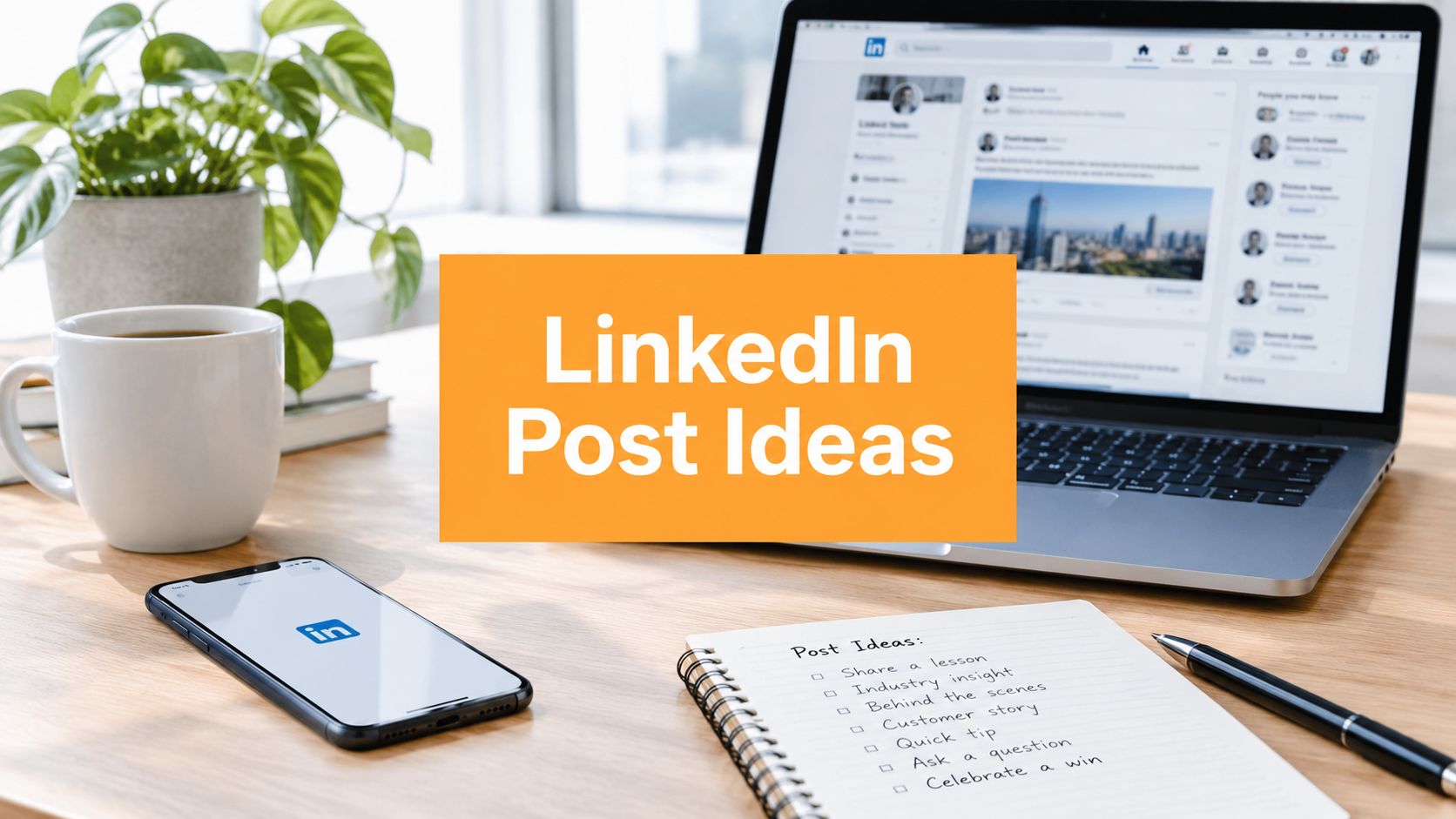
- Content inspiration: Save posts with strong hooks, clean formatting, or useful story structures.
- Sales prep: Keep posts that explain customer pain points in the words your market uses.
- Research: Save expert commentary, practical frameworks, and examples worth citing later.
- Competitive reading: Watch how people in your space package ideas that spread.
- Personal learning: Build a reading queue around one theme instead of consuming scattered advice.
This is also why broad thinking about effective social media growth strategies matters. A save isn't just a passive action. It's a clue about what people consider useful enough to revisit.
What tends to get saved
People don't usually save hot takes just because they're flashy. They save posts they want to use again.
That usually means content like:
- Step-by-step explanations
- Evergreen how-to guidance
- Reusable frameworks
- Clear examples
- Resource lists people can revisit
If a post helps someone do better work next week, it has a better chance of getting saved than a post that only gets a quick like today.
That idea should shape your own publishing too. If you want your content to have a longer shelf life, write for utility.
A content calendar helps here because it lets you turn repeated patterns from your saved posts into planned themes. If you need a structure for that, this LinkedIn content calendar template is a practical starting point for moving from scattered inspiration to repeatable publishing.
A Smarter Way to Organize Your LinkedIn Ideas

LinkedIn's native save feature is good for capture. It's not great for creation.
That's the trade-off. Saving is frictionless, but acting on what you saved takes extra work. You still need a place to turn “interesting post” into “draft I can publish” or “insight I can use in a client call.” Without that second step, your saved list becomes a pile of links.
LinkedIn's feed also favors relevance over recency, and posts that get strong early engagement are more likely to spread, while useful evergreen content can keep surfacing when it matches user interests, as described in Hootsuite's breakdown of how the LinkedIn algorithm prioritizes relevance and usefulness. That makes the end goal pretty clear. You don't just want to save useful posts. You want to create useful posts.
A better workflow than endless bookmarking
The cleaner setup looks like this:
- Save the post when you spot something worth keeping.
- Extract the idea behind it, not just the link.
- Translate it into your angle based on your experience, audience, or niche.
- Draft while the insight is still fresh.
That's where purpose-built writing tools help. Instead of storing only finished posts, you can capture raw ideas and turn them into structured drafts. RedactAI fits that workflow by helping professionals generate LinkedIn post drafts from simple prompts and shape them around their own profile, voice, and content history.
What works better than saving everything
A few habits beat a giant saved folder every time:
- Keep a swipe note: One document for hooks, frameworks, objections, and themes.
- Name the reason you saved it: “Good opening,” “sales angle,” “great structure,” or “contrarian point.”
- Write before you forget: The best time to draft is close to the moment you found the idea.
- Prefer patterns over copies: Don't save ten versions of the same post style unless you know what's different about each one.
The save feature is still useful. It just works best as the front door, not the whole system.
If you want a cleaner way to turn saved inspiration into actual LinkedIn posts, RedactAI gives you a workspace to move from rough idea to draft without digging through a cluttered saved-items list. It's a practical next step when bookmarking alone isn't enough.