You posted something useful on LinkedIn a few weeks ago. Now you want to find it again, maybe to reply to new comments, maybe to reuse the idea, maybe just to confirm it published. That should be simple. On LinkedIn, it usually is, but only if you know where the platform hides things.
The practical answer to how to see my linkedin posts is straightforward. The useful answer is a little deeper. Once you know where your posts live, you can review what worked, spot what fell flat, and keep your profile showing stronger content instead of random leftovers from your last posting sprint.
Finding Your Posts The Standard Way on Desktop
On desktop, the cleanest workflow is still the native profile route. LinkedIn has over 1 billion members globally, with roughly 200 million users in the U.S. and 130 million in India, and the standard way to locate your own posts is to open your profile, scroll to Activity, and click Posts, as described in this LinkedIn posts walkthrough.

The clicks that actually matter
If you're on a browser, use this path:
- Open LinkedIn.com and sign in.
- Click your profile photo or Me menu.
- Open your profile page.
- Scroll to the Activity area.
- Click Posts.
- If you only see a small preview, click Show all posts.
That last click matters more than is often acknowledged. LinkedIn only surfaces a preview first, so if you're hunting for anything older than your latest content, you need the full post list.
Why LinkedIn only shows a small preview first
The short version is that LinkedIn treats the profile as a summary page, not a full archive. Your profile is meant to give visitors a quick read on what you've been doing recently. That's useful for recruiters, buyers, partners, and anyone checking you out after seeing a comment or a connection request.
Practical rule: Treat the posts visible near the top of your activity as your storefront, not just your archive.
That changes how you should think about publishing. If your newest posts are weak, off-topic, or rushed, that's what profile visitors see first. If your newest posts are sharp and relevant, your profile does more work for you without any extra effort.
What works and what doesn't
A few desktop habits save time:
- Use your profile, not the home feed. The feed is noisy. Your profile gives you your own content directly.
- Click Posts, not just Activity. Activity includes other behavior too, which makes browsing slower.
- Use Show all posts when you're researching old content. Scrolling the profile preview is a bad way to find something specific.
What doesn't work is treating LinkedIn like a normal blog archive. It isn't built that way. You have to move through the profile and activity layers first. Once you accept that, finding your content becomes routine.
Viewing Your LinkedIn Activity on the Mobile App
Users often check LinkedIn on their phone between meetings, while commuting, or during the small gaps in the day when desktop isn't open. LinkedIn has said that over 70% of its active users interact with the platform primarily via mobile devices, and the mobile experience is optimized around the same basic profile-to-posts flow. The same source notes that in the 2026 360Brew update, the mobile analytics snapshot shows aggregate post impressions over the last seven days, while each post still includes a View analytics option with more detailed metrics, as noted in the earlier desktop source reference.

The mobile path
In the app, the route is usually:
- Tap your profile picture
- Open View Profile
- Scroll to Activity
- Tap Posts
- Tap Show all posts if needed
- Open a post and tap View analytics when available
The path is familiar if you've used desktop, but the behavior is different. Mobile is better for quick checks. Desktop is still better for deliberate review.
When mobile is the better option
Mobile wins when you need speed. If you just published and want to make sure the post is live, mobile is fine. If you want to check whether comments are coming in, mobile is often faster than opening a laptop.
It also helps when you're working from your own content queue mentally. You remember the general week you posted something, open your activity, and scan quickly.
If all you need is confirmation, reaction checks, or a fast reply to comments, the app does the job well.
Where mobile gets annoying
Mobile gets clumsy when you're trying to do content analysis instead of simple checking.
A few examples:
- Comparing multiple posts is harder because you can't scan several analytics views comfortably.
- Reviewing old content takes more thumb-scrolling than it should.
- Editing your strategy from the app is awkward because you're flipping between your post list, notes, drafts, and analytics.
My rule is simple. Use mobile for monitoring. Use desktop for decisions.
Beyond Finding Filtering and Searching Your Activity
Once you know where your posts are, the next step is control. Scrolling is fine when you're looking for something recent. It breaks down fast when you publish often, mix formats, or need to pull up an old post on a specific topic.
LinkedIn's activity system separates content by format, including text posts, video content, article publications, and carousel documents, each with different discovery paths inside activity, as discussed in this video on LinkedIn post formats.

Filter by format first
If you publish in more than one format, filtering is the first thing to do. Otherwise, your activity feed becomes a mixed pile of text posts, videos, article links, and documents.
Use filters when you're trying to answer a specific question:
- Looking for a carousel you posted last quarter? Filter to document-style content first.
- Trying to compare your videos? Narrow the list before you start clicking.
- Need an article you published months ago? Don't browse everything. Isolate that content type.
That sounds obvious, but a lot of creators skip it and waste time scrolling.
Search with keywords like an operator
If you remember the topic but not the date, search by phrase or a distinctive keyword from the post. This works best when your content has clear topic anchors. Posts with generic opening lines are harder to rediscover later.
A practical workflow:
- Go to your activity or post archive.
- Filter to the content type if possible.
- Search for the topic keyword, product name, or phrase you used.
- Open likely matches in separate tabs if you're on desktop.
Why this matters for content reuse
Searching your own archive isn't just for finding old posts. It's one of the easiest ways to see patterns in your publishing.
For example, if you search one recurring topic and find that your best posts were all short text posts, that tells you something. If another topic shows up mostly as documents or carousels, that's another useful signal.
If you're building a more efficient workflow, it's also worth reviewing LinkedIn Chrome extensions that support content work. The right setup can make collecting, reviewing, and reworking post ideas much less manual.
The fastest creators don't rely on memory. They build a retrieval habit.
Unlocking Post Analytics for Better Content
Finding a post is the easy part. Deciding what to do with it next is where strategy starts.
The important shift is this: don't open old posts only when you need to answer a comment or copy a link. Open them to learn. LinkedIn's activity setup makes that possible because each post can expose its own performance data, and the latest posts get the highest default visibility on your profile.

What to look at inside post analytics
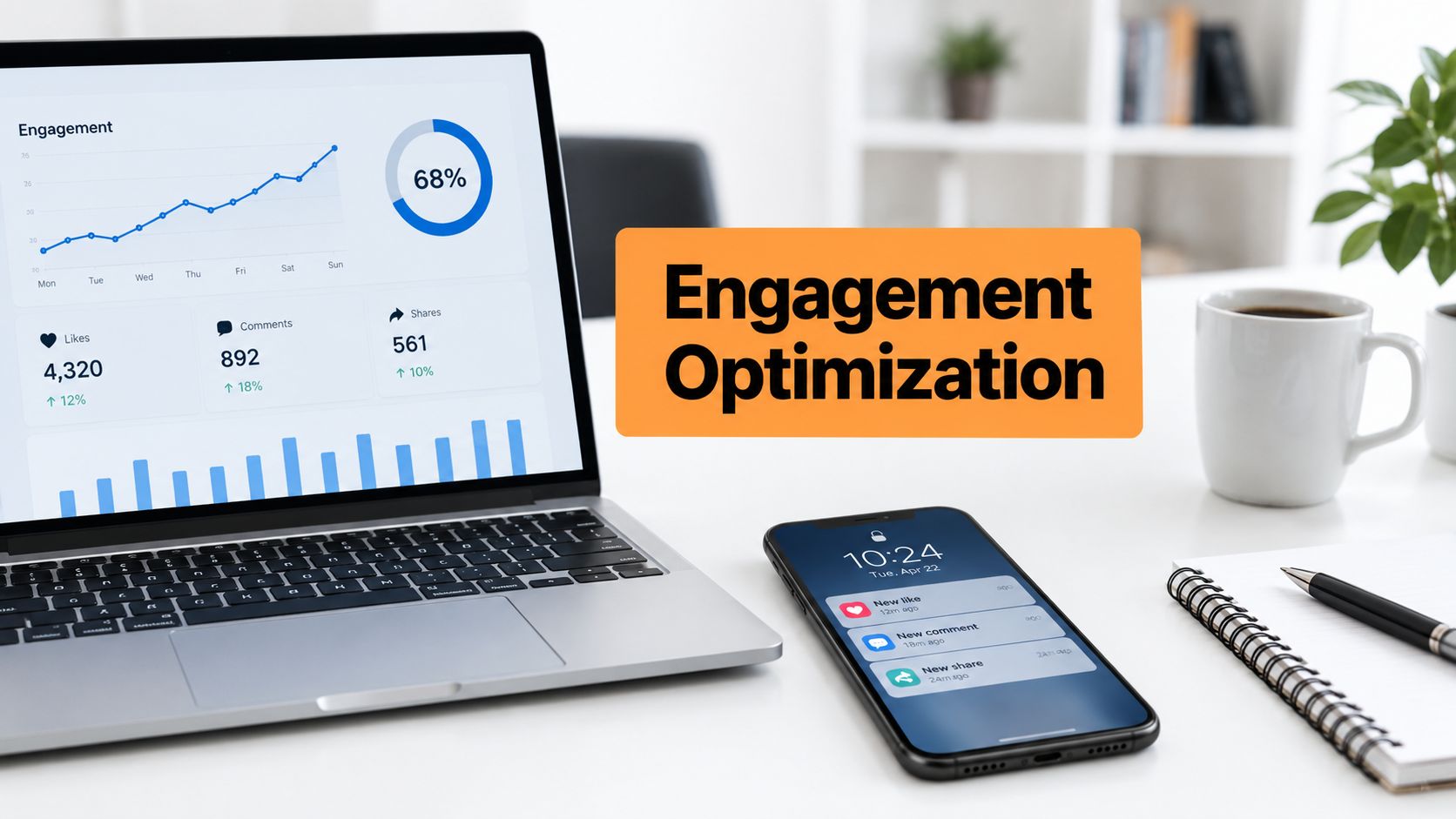
When you click View analytics or Show analytics on a post, LinkedIn can show metrics such as impressions, reactions, comments, engagement rate, and in some views viewer demographics or unique viewers.
Here's the useful interpretation, not just the labels:
| Metric | What it tells you | What to do with it |
|---|---|---|
| Impressions | How often the post was displayed | Good for judging topic reach and hook strength |
| Reactions | Immediate positive response | Useful for spotting emotionally clear posts |
| Comments | Depth of response | Strong signal that the topic sparked conversation |
| Engagement rate | Interaction relative to visibility | Helps compare posts with different reach levels |
| Viewer demographics | Who saw it | Useful when you're trying to attract a specific audience |
How to read the pattern, not just the number
A post with high impressions and weak engagement usually means one of two things. The topic or opening line got distribution, but the content didn't create enough response. Or the post reached people who noticed it but didn't feel compelled to interact.
A post with fewer impressions but strong comments can be more valuable. That's often the kind of post that builds authority with the right audience, even if it doesn't look flashy at first glance.
LinkedIn's activity architecture also matters here. The system shows the last 2 posts as a preview in your profile activity area, and those posts act as a default visibility layer for profile visitors. That makes your latest content more important than many people think, because it's often the first proof of quality someone sees.
If you need a clearer read on the top metric, this breakdown of what LinkedIn impressions mean is a helpful companion.
A better review habit
I like a simple review pass:
- Check the hook. Did the first lines earn visibility?
- Check the response shape. Reactions and comments tell different stories.
- Check audience fit. If the wrong people are seeing it, the topic or framing may be off.
- Check whether it deserves a second life. Some posts should be reposted, rewritten, or turned into another format.
Here’s a useful walkthrough if you want to watch analytics in action:
Strong content isn't always brand-new content. Often it's a proven idea with a better format, sharper opening, or cleaner timing.
That matters because your post archive is not just history. It's raw material. When you identify a post that reached the right people or sparked the right kind of discussion, that's a candidate for reuse. Rewrite it with a tighter angle. Turn a text post into a carousel. Pull one comment thread into a follow-up post. Good creators don't just publish. They mine their own backlog.
Managing Company Page and Scheduled Posts
Personal posts are easy once you know the profile path. Company Page posts are different because they live under the page admin experience, not your personal activity feed.
Where Company Page posts live
If you manage a Company Page, open the page itself and go through the admin tools or content area where published updates appear. Don't expect those posts to show up as if they were personal profile posts. They're attached to the page identity.
That sounds obvious, but it's a common source of confusion when someone publishes as a page in the morning and then checks their own profile at lunch.
Scheduled posts from third-party tools
If you scheduled a post through a tool, the main rule is simple: once LinkedIn publishes it, it should appear natively in the correct place for that identity.
That means:
- Scheduled personal posts should appear in your personal post history after publication.
- Scheduled page posts should appear on the Company Page after publication.
- If you can't find them, check whether the post was scheduled for the right account or page first.
For a cleaner workflow, this guide on how to find scheduled posts on LinkedIn helps sort out what is still queued versus what is already live.
Quick troubleshooting
If something seems missing, check the basics before assuming LinkedIn ate the post:
- Wrong identity: You posted as the page, not as yourself.
- Still scheduled: The content hasn't yet published.
- App lag: Refresh the page or check desktop if mobile looks delayed.
Frequently Asked Questions About Viewing Posts
Why can't I find a very old post?
Start from your full post archive, not the profile preview. Then narrow by format if you can, and search using a phrase, topic keyword, or product name from the post. Older posts are usually hard to find because people remember the idea, not the exact wording.
Why do I only see a couple of posts on my profile?
Because LinkedIn uses a preview layer in the activity area. It doesn't expose your whole archive immediately. Click into Posts and then Show all posts to get the full list.
How do I see comments on my own post?
Open the post itself from your activity list. If LinkedIn collapses the comment thread, expand it and keep scrolling. For active posts, desktop is usually easier because the full thread is easier to inspect and moderate.
Why isn't a post I just published showing up?
Usually it's one of three things: the app hasn't refreshed yet, you published under the wrong identity, or the post is still in a scheduled state somewhere in your workflow. Refresh first, then check desktop, then verify where it was published from.
Can I find posts by topic instead of date?
Yes, but the quality of the result depends on how distinct your wording was. Search works much better when your posts include clear topic phrases instead of generic intros.
Should I manage everything from mobile?
Not if you're serious about content review. Mobile is fine for fast checks and replies. Desktop is better for archive digging, format comparisons, and analytics review.
If you're publishing regularly, your real advantage isn't posting more. It's being able to find, judge, and reuse what you've already made.
If you want a faster way to turn old LinkedIn ideas into fresh posts, schedule them, and keep your voice consistent, RedactAI is built for exactly that. It helps professionals generate drafts, recycle strong content, and manage a steadier LinkedIn workflow without sounding generic.