Thinking about posting an article on LinkedIn? The first step is super simple: just click 'Write article' at the top of your homepage. This isn't your average post—it opens up a whole new editor built specifically for long-form content. This is your chance to really dig into a topic, share what you know, and build some serious authority with a professional audience.
Why LinkedIn Articles Are Your Secret Weapon
Before we get into the nitty-gritty of how to publish, let's talk about why it's such a game-changer. A standard LinkedIn post is great for a quick update, but it's a fleeting thought in a very crowded feed. An article, on the other hand, is a strategic move. It's your shot at bypassing all the noise and establishing yourself as a genuine expert.
Here's a little secret: while millions of people are scrolling every day, a surprisingly small number of them are actually creating original content. Projections show that only about 3% of LinkedIn's members post more than once per week. That's a massive opportunity. If you commit to publishing consistently, your articles can cut through the clutter and get you noticed. You can check out more on these trends in LinkedIn's 2026 statistics.
This isn't just about sharing random thoughts. It's about showcasing deep expertise in a format designed for it. Think of it as your own personal blog, but with a built-in audience of professionals ready to listen.
The Real-World Impact of Long-Form Content
A great article doesn't just get views; it creates real opportunities. It can completely change how your network, and more importantly, potential clients or employers see you.
- For Consultants & Freelancers: One insightful article can showcase your problem-solving chops way better than a resume ever could. I've seen it happen time and time again—a well-written piece leads directly to a new client inquiry.
- For Job Seekers: Recruiters are always looking for candidates who show initiative and deep industry knowledge. An article analyzing a key trend in your field makes your profile jump out from a sea of lookalikes.
- For Founders & Executives: Publishing articles is a cornerstone of building a powerful personal brand. It's how you become a recognized voice in your industry, and you can see some excellent thought leadership content examples to get inspired.
Finding and Using the Article Editor
Ready to get started? First things first, you need to find where LinkedIn hides its article editor. It’s actually surprisingly simple—right on your homepage feed, no special permissions or secret handshake required.
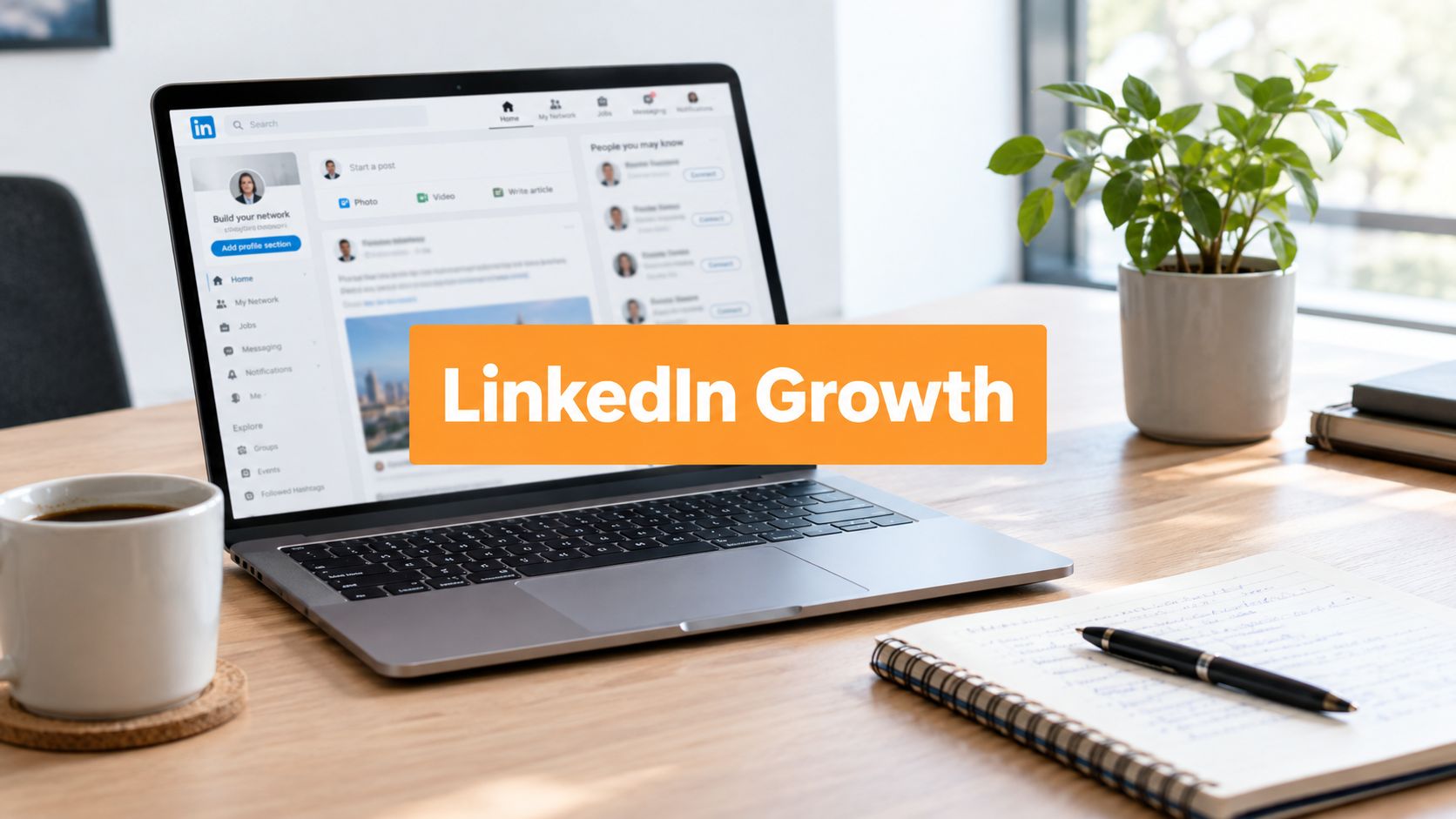
At the very top of your feed, you'll see the familiar "Start a post" box. Instead of typing your thoughts there, look just below it for the "Write article" button. One click, and you're whisked away from the world of short-form updates and into a dedicated publishing tool built for your deep-dive content. This is your blank canvas.
Once inside, you'll land on a clean, minimalist interface. It feels a lot like any standard blogging platform, which is great because it lets you focus on your writing without getting sidetracked by a bunch of complicated menus.
Navigating the Editor's Key Features
The layout is pretty intuitive, but let's do a quick tour of the main components you'll be working with every single time you publish.
- Headline: This is that big, bold text field right at the top. It’s your hook, your first impression, and your single best shot at getting someone to click. Don't rush it.
- Cover Image: Right under the headline, there's a prompt to upload a header image. A compelling visual here is non-negotiable; it's what makes your article pop in a crowded feed.
- Body Text: And here's the main event—the space where you'll bring your ideas to life. You can type directly into the editor or, my personal preference, paste in a draft you've already polished up elsewhere.
This screenshot gives you a perfect look at the main editor, showing where your headline, cover image, and body text will go.
As you can see, they’ve clearly designed it for a distraction-free writing experience, which makes it much easier to just get your thoughts down.
Formatting Your Article to Keep Readers Hooked
You’ve poured all your best ideas onto the page. That’s the hard part, right? Well, almost. Now it’s time to make sure people actually read it.
A dense wall of text is the fastest way to get someone to click away, no matter how brilliant your insights are. Proper formatting isn't just about making things look pretty; it's about respecting your reader's time and attention.
Think of it this way: good formatting creates signposts that guide your reader through your argument, making it easy for them to skim and digest. This is especially true for busy professionals scrolling through their feed on a coffee break.
Use Headings and Text Styles for Clarity
The LinkedIn editor gives you a simple but powerful toolkit to structure your article. Your main title is automatically set as the H1, which is the biggest and most important heading. So, for the body of your article, you'll mainly be working with H2 and H3 headings.
Use H2s to break up your article into major sections, and then use H3s for any sub-points within those sections. This creates a clean, logical flow.
You can also use bold to make key statistics or terms pop, and italics for a softer emphasis on a specific phrase. These little visual cues are fantastic for guiding your reader's eye to the most critical information.
Pro Tip: Good formatting shows you respect your reader's time. If your article looks easy to read, people are far more likely to stick around.
Add Visual Elements to Break Up the Text
Beyond just text, adding rich media is a game-changer for engagement. It breaks up long sections of text and can often explain a concept faster than words alone.
The LinkedIn editor makes this a breeze. Just click on the little [+] icon that appears when you start a new line. A menu will pop up, letting you instantly add all sorts of media.
- Images: A high-quality, relevant image is perfect for illustrating a point or simply giving the reader's eyes a break.
- Videos: You can embed videos directly from sites like YouTube or Vimeo to add a dynamic, engaging element.
- Slides: Got a great presentation on SlideShare? Embed it right into your article to add more depth and repurpose old content.
- Links: Instead of a plain text link, you can create a rich preview that automatically pulls in an image and description from the site you're linking to.
LinkedIn Article Formatting Checklist
Before you hit that publish button, run through this quick checklist. It's a simple way to make sure your article is structured for maximum readability and impact.
| Formatting Element | Best Practice Tip |
|---|---|
| Headings | Use H2s for main sections and H3s for sub-sections to create a clear hierarchy. |
| Paragraphs | Keep them short and sweet—2-3 sentences is ideal. Leave a blank line between them. |
| Emphasis | Use bold text for key takeaways and data points. Use italics sparingly for emphasis. |
| Lists | Use bullet points or numbered lists to break down steps, examples, or features. |
| Visuals | Add at least 1-2 relevant images or other media to break up the text and add interest. |
| Blockquotes | Use the quote feature to highlight powerful statements, tips, or key quotes. |
Sticking to these simple formatting rules ensures your content isn't just well-written, but also easy and enjoyable to consume.
Finally, make sure every paragraph has a single, clear purpose. If you're struggling to nail that opening line, a topic sentence generator can sometimes help spark an idea for a clear and concise hook, keeping your audience locked in from the first word.
Writing Headlines That Get Clicks and Views
Let's be honest: a brilliant article that nobody reads is just a well-written secret. Your headline is the gatekeeper to all your hard work, and it's the single biggest factor that determines whether someone clicks or just keeps on scrolling.
The trick is to write a title that's both compelling for a human reader and optimized for search engines. This is a real art. You want to grab attention without falling into cheap clickbait traps that can make you look unprofessional. The goal is to spark curiosity while making a clear promise of what's inside.
Think of a powerful headline as an invitation to a conversation your ideal reader is dying to have. It should hint at a solution to a nagging problem, offer a surprising perspective, or tease an insight they won't find anywhere else.
Getting Found: SEO for Your LinkedIn Article
Beyond just being catchy, your headline is your best friend when it comes to getting discovered. LinkedIn articles are indexed by search engines like Google, which means the right title can bring you a steady stream of readers for months, or even years, to come.
First things first, figure out the main keyword or phrase someone would type into a search bar to find your content. If you wrote an article about managing remote teams, then "remote team management" needs to be in your title. It’s a simple but fundamental step to getting your insights in front of the right people.
Don’t stop there. Weave those keywords into your H2 and H3 subheadings and sprinkle them naturally throughout the article itself. This sends a strong signal to both LinkedIn and Google about what your content is about, giving it a much better shot at ranking in relevant searches.
Key Takeaway: Your headline has two critical jobs. It has to be completely irresistible to your target reader and contain the keywords that search algorithms are looking for.
A simple formula I come back to time and again is combining a clear benefit with a specific, tangible outcome. So, instead of a boring title like "Tips for Networking," you could try something like, "5 Unconventional Networking Strategies That Landed Me 3 New Clients." See the difference? It's specific, promises a real result, and makes you want to know more.
For a deeper dive, you can find more practical advice on how to write a killer headline for LinkedIn in our detailed guide.
Don't Forget the Hashtags
Finally, let's talk hashtags. While they don't belong in the headline itself, adding three to five super-relevant hashtags when you publish is absolutely non-negotiable. This is your ticket to expanding your reach beyond your immediate network, making your article visible to a much wider audience of people who follow those topics.
Give Your Article a Second (and Third) Life
Alright, you hit "Publish." That's the starting gun, not the finish line. Your very next step should be crafting a killer introductory post to share your new article.
Whatever you do, don't just dump the link and run. You need to frame it. Pull out a provocative question from your piece, share a surprising statistic, or offer a personal insight that hooks your audience and makes them need to click. This first share is your best shot at getting that initial wave of readers.
But the real magic happens when you give your content more than one chance to shine. Instead of letting all that hard work gather dust in your profile's archives, you can repurpose it. This is how you squeeze every drop of value out of the time you invested. My absolute favorite way to do this? Turn the article’s best bits into a super-engaging carousel post.
Turn Your Article Into a Carousel Post
If you're not familiar, a carousel is basically a swipeable PDF that you upload directly into a post. It’s a genius format because it forces people to interact—they have to physically swipe to get the next nugget of information.
There's a reason carousels are all over your feed. The data doesn't lie: carousel posts have an insane 6.60% engagement rate. To put that in perspective, it's 278% higher than video and a mind-boggling 596% higher than a simple text post. Seeing numbers like that, it's a no-brainer to turn your long-form articles into carousels.
So, how do you do it? Just pull out the juiciest parts of your article.
- Key Stats: Grab the most shocking numbers and data points you included.
- How-To Steps: If you wrote a guide, turn each step into its own slide.
- Main Points: Summarize your core arguments into bold, easily digestible statements.
Your mission is to create a visual, bite-sized summary that stops the scroll. Keep each slide clean and focused on a single, powerful idea.
On the very last slide, drop a clear call to action telling people to read the full article, with a link in the comments. This simple trick does two things at once: it juices your post's engagement and sends a whole new wave of traffic back to the original article you worked so hard on.
Looking for more ways to get more mileage out of your work? We've got a whole playbook on content repurposing strategies.
Alright, let's get into the questions I hear all the time about publishing articles on LinkedIn. If you're just getting started, you've probably wondered about these same things.
So, what’s the real difference between a LinkedIn article and a regular old post? It’s a great question. Think of a post like a quick status update – a thought, a shared link, or a question for your network. You’ve only got 3,000 characters to work with.
An article, on the other hand, is your long-form heavyweight champion. With a massive 125,000-character limit, it's essentially a blog post that lives permanently on your profile. The best part? It gets indexed by Google, making it the perfect way to really dig deep into a topic and show off your expertise.
This brings us to the next big question: how often should you actually write one?
Finding Your Publishing Cadence
Here’s my advice: consistency over frequency, every single time. Don't burn yourself out trying to publish an article every week. A much better, more sustainable goal is to aim for one really solid, well-researched article per month.
This approach lets you build your authority without the pressure. You can then fill the gaps with shorter, more frequent posts to keep the conversation going with your network between those bigger content pieces.
Now, what happens if you spot a typo right after you hit "Publish"? Don't panic. You can absolutely edit your article after it's live.
It's super simple. Just go to the article on your profile, find the "Edit article" button, make your changes, and republish. This is a lifesaver for updating old stats, fixing an embarrassing typo, or even adding new insights to an older piece.
Finally, let's talk hashtags. Do they really matter for articles? Yes, 100%. They are critical for getting your article discovered. By adding 3-5 super-relevant hashtags, you're telling the LinkedIn algorithm exactly what your content is about. This helps it show your article to people interested in those topics, which can seriously expand your reach beyond your immediate network.
Ready to create compelling LinkedIn content without the guesswork? RedactAI uses your unique voice to generate authentic, high-impact post drafts in minutes, helping you build authority and engage your network consistently. Get started for free at https://redactai.io.