So, you've got a video you want to post on LinkedIn. That's a great move. But it's not just about uploading a file and calling it a day. To really make an impact, you need to understand why you're doing it and how to get the most out of the platform.
The single most important thing to remember? Upload your video file directly to LinkedIn. Don't just paste a YouTube link. We call this native video, and it's the key to getting seen.
Why Bother With Video on LinkedIn?
Let's be real: text posts and articles are fine, but in a feed that's more crowded than ever, they just don't grab your attention the way video does. Think about how you scroll. What actually makes you stop? It’s almost always something moving. That's the power of video—it hooks people instantly, which is half the battle.
A good video can completely change how people see your profile. It’s no longer just a static, digital resume; it becomes a living, breathing portfolio of who you are and what you do. It's one thing to write "I'm a great public speaker" on your profile. It's something else entirely to show a 30-second clip of you absolutely owning a stage. That visual proof builds trust and authority way faster than a block of text ever could.
Turning Connections Into a Real Community
Let me paint a picture for you. I recently saw a business consultant post a simple, two-minute video explaining a really complex industry trend. She just broke it down into easy-to-understand advice.
That one video didn't just rack up views; it started actual conversations in the comments. Potential clients saw her expertise in action, not just listed as a skill on her profile. You can bet that video led directly to new leads. The same goes for someone looking for a job—a quick video walking through a project you led will catch a recruiter's eye far more than another bullet point on a resume.
Video closes the gap between your online persona and the real you. It's the most powerful tool you have for building genuine rapport with your network and turning passive connections into real opportunities.
The Magic of Native Video
I mentioned this before, but it's worth repeating: uploading your video file directly to LinkedIn is a non-negotiable for success.
When you post a link from YouTube or Vimeo, LinkedIn knows you're trying to send people off their platform. The algorithm hates that, so it throttles your reach. But when you upload a native video, LinkedIn loves it and gives you a serious boost.
- They autoplay in the feed, which is huge for catching someone's eye as they scroll.
- You get way better analytics, so you can see who's watching and how long they stick around.
- They get priority from the algorithm, which means much higher engagement. We dig into this more in our guide to boosting your LinkedIn engagement rate.
Bottom line: learning how to post a video on LinkedIn isn't just a technical task. It’s about learning how to communicate in a more human, dynamic way on the world's biggest professional network.
Getting Your Video Onto LinkedIn: The How-To
Alright, so you're sold on using video for LinkedIn. Smart move. Now, let’s get into the practical side of things—actually uploading your masterpiece.
The good news? The technical steps are pretty simple. But the small details, like adding a killer thumbnail or accurate captions, are what really make a video pop in the feed. The process is a bit different depending on whether you're on your computer or your phone, but the end goal is always the same: a polished, professional video that people actually want to watch.
Video has absolutely blown up on the platform. We've seen LinkedIn video posts jump by a whopping 53% year-over-year as of 2026, which tells you everything you need to know about where content is headed. It's not just a trend; it's a core part of how we connect professionally now.
This simple flowchart breaks down why it works so well. Video builds trust, lets your personality shine through, and, most importantly, gets you real-world results.
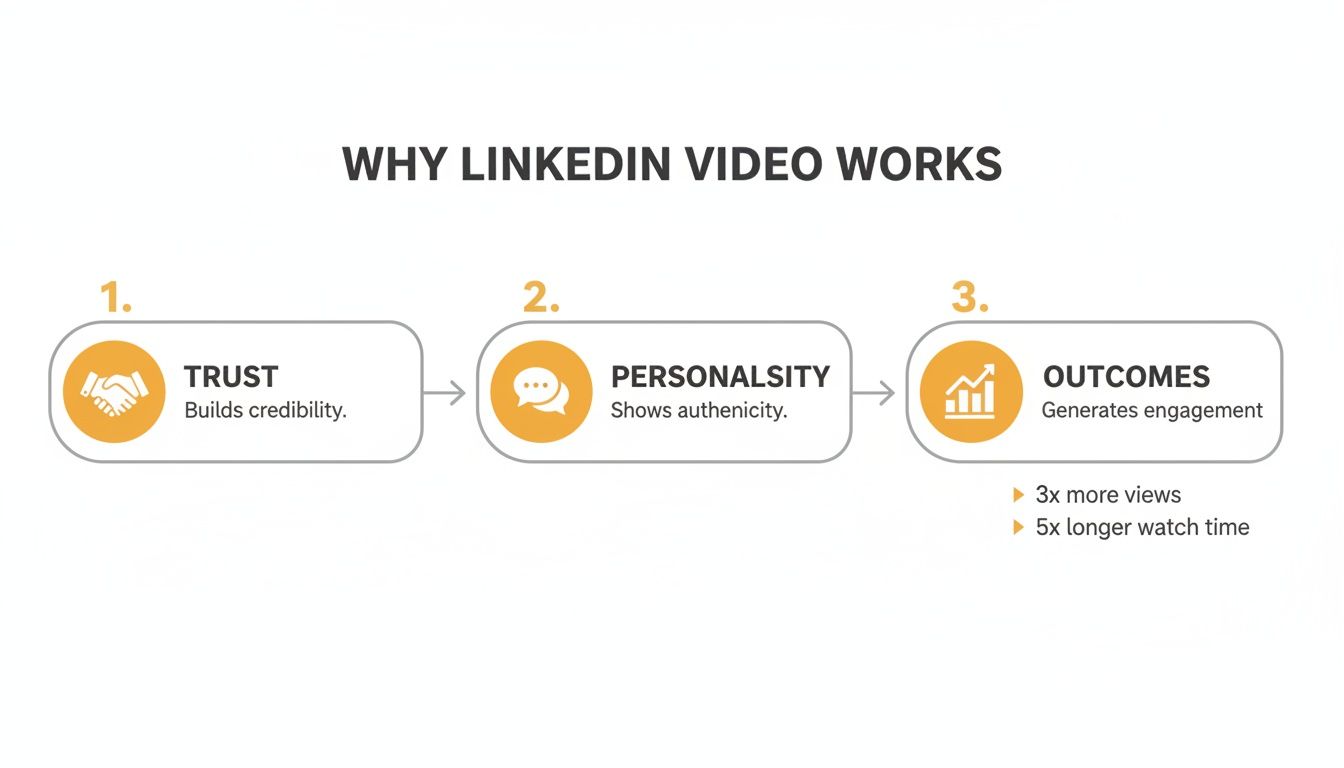
The bottom line is that video cuts through the noise. It turns a passive scroll into an active connection, opening the door for genuine opportunities.
Posting from Your Desktop Computer
Most of the time, you'll probably be uploading from your desktop. This is the best way to go when you have a fully edited, high-quality video file ready and waiting.
Just head to your LinkedIn home feed and look for the "Start a post" box right at the top. Click on the media icon (it looks like a little landscape picture) and find your video file.
As it uploads, you’ll see the options that matter most. This is where you can add a custom thumbnail and attach a caption file (which needs to be in .SRT format). Seriously, do not skip these steps. A custom thumbnail is like the cover of a book; it’s what convinces someone to click "play."
Your thumbnail is your video's first impression. Make it count. Choose a frame that's clear, intriguing, and gives a hint of the value inside. A blurry or boring image is the fastest way to get scrolled past.
Captions are just as crucial. Remember, tons of people browse LinkedIn with the sound off (especially if they're "working"). An SRT file makes sure your message lands, whether they can hear you or not. Once your thumbnail and captions are locked in and you've written some great copy, you're ready to hit that "Post" button.
Uploading from the LinkedIn Mobile App
On the flip side, posting from your phone is perfect for more spontaneous, in-the-moment content. Think a quick tip from a conference, a behind-the-scenes look at a project, or a casual update you want to share right away.
To get started, just tap the "Post" button in the navigation bar at the bottom of the app. From there, hit the media icon, grab the video from your phone's library, and tap "Next." The mobile app actually has some handy little editing features built right in.
- Trim Your Clip: You can easily snip the start or end of your video to tighten it up and get right to the good stuff.
- Add Stickers or Text: These are great for adding a little personality or putting a clear call-to-action directly on the screen.
- Generate Captions: With just one tap, the app can automatically create captions for you. Just be sure to give them a quick once-over to catch any weird autocorrect errors before you publish.
After you've made your tweaks, write your post text, and send it out into the world. Being comfortable with both desktop and mobile uploads means you can share awesome video content whenever inspiration strikes. For a deep dive into all the technical file requirements, check out our complete guide on essential LinkedIn post specs.
Writing a Caption That Actually Gets Read
You've uploaded the perfect video, but don't hit "Post" just yet. Your job is only half done.
Think of it like this: your video is the main event, but the caption is the invitation that gets people in the door. A killer video paired with a lazy caption like "Check out my new video!" is a massive missed opportunity. The text is what sparks a conversation and turns a passive scroll into a meaningful connection.
Your first line is everything. It's your one shot to stop someone from flying past your post. Forget the slow build-up—lead with a punchy question, a shocking statistic, or a bold statement that makes them stop and think.
Crafting a Compelling Hook
Let's break it down with a real-world example. Say you made a video about common project management mistakes.
- Before: "In this video, I discuss some common pitfalls in project management that can derail your team's progress." (A bit dry and academic, right?)
- After: "What if the one 'best practice' you swear by is secretly killing your team's productivity? I dug into the data, and the results are not what you'd expect..."
See the difference? The second version is all about intrigue. It doesn't just state the topic; it teases a valuable, counterintuitive insight that people will want to uncover.
Your opening line isn't supposed to summarize the video. It's supposed to make watching it feel urgent and necessary. Hook them with a problem they know all too well or a promise they can't ignore.
Structuring for Readability and Engagement
Once you’ve got their attention, you have to hold it. Nobody wants to decipher a wall of text, especially on a phone. Keep your paragraphs short and use line breaks to create plenty of white space. It makes the whole thing feel less intimidating and easier to skim.
Make formatting your friend:
- Use bullet points to highlight the key takeaways or action steps from your video.
- Drop a direct question in the middle to pull your reader back in.
- Tag relevant people or companies (just use the "@" symbol) to bring them into the discussion and expand your post's reach.
A well-structured caption can make all the difference in whether someone sticks around.
The generous white space and clear ideas in that example make the text inviting, not overwhelming. If you want to really master this, our guide on how to write engaging LinkedIn posts has even more advanced strategies.
The All-Important Call-to-Action
Finally, every single post needs a clear call-to-action (CTA). Don't just end your post and leave people hanging. Tell them exactly what you want them to do next. Should they share their own experiences in the comments? Visit your website? Ask a question? Be direct.
A strong CTA is what turns a viewer into a participant. It's the final piece of the puzzle that ensures your video doesn't just rack up views, but actually drives results.
And don't forget: a huge chunk of your audience will watch with the sound off. To make sure your video still lands its message and shows up in searches, it's essential to learn how to caption videos properly.
Advanced Tactics to Boost Your Video's Reach

So, you've uploaded a killer video. That's a great start, but it's really just step one. If you want that video to truly perform and not just fade into the feed, you need to think more like a strategist than just a content creator.
The LinkedIn algorithm is designed to reward content that sparks immediate conversation. Your job is to give it all the right signals from the second you hit that "post" button. Let's break down how to do that.
Master the Art of Smart Tagging
Tagging is one of the most powerful—and most frequently botched—tactics out there. When you tag another person or a company page, you're not just sending them a notification; you're essentially inviting their entire network to the party.
But there's a very fine line between strategic networking and just being spammy.
The key is relevance. Only tag people or companies that are genuinely part of the video's story. Did you interview an expert on your podcast? Tag them. Are you demoing a piece of software that your team absolutely loves? Tag the company. This creates an authentic link that makes them want to engage, which tells the algorithm your content is valuable.
Whatever you do, don't just tag a bunch of industry influencers hoping for a cheap visibility boost. It comes across as desperate and can seriously backfire. A good rule of thumb is to ask yourself: "Does this tag add genuine context or value for the viewer?" If the answer is yes, tag away.
Time Your Post for Maximum Impact
When you post your video can make a massive difference in its initial traction. Think of it like dropping a pebble in a pond—you want to do it when the most people are around to see the ripples.
While there's no magic "best time" for everyone, we've seen some pretty consistent patterns during the standard workday.
- Mid-morning (9-11 AM): Professionals are settling in, grabbing their coffee, and doing a quick scroll before diving into their big tasks.
- Lunchtime (12-1 PM): This is a prime-time break for catching up on industry news and network updates.
- Late Afternoon (4-5 PM): As the day winds down, people often do one last check-in on their feeds.
Start by experimenting with these windows, but then get serious about your own analytics. LinkedIn will show you who's watching your content—their job titles, industries, and locations. Use that data to build a clear picture of your audience and tweak your posting schedule to align with their daily habits.
The "golden hour" for any new post is the first 60 minutes after it goes live. The more likes, comments, and shares you get in that initial window, the more LinkedIn's algorithm will push it to a wider audience. Don't just post and walk away—stick around and reply to every single comment you get.
Analyze and Adapt Your Strategy
Your video analytics are a goldmine. Don't ignore them. After your video has been live for a few days, pop in and see how it performed. You're looking for two key metrics: viewer demographics and video retention.
Are you actually reaching the people you intended to? And are they sticking around, or dropping off after the first 10 seconds?
This data is your roadmap. If a certain style of video has a super high retention rate, that's a signal to make more content just like it. If your audience is mostly from a specific industry, start creating videos that speak directly to their biggest challenges. For more advanced ideas, it's worth reading up on boosting social media engagement with short-form video.
Ultimately, consistency is your biggest advantage. Showing up regularly isn't just fluffy advice; it's a proven strategy. LinkedIn's own data suggests that posting at least once a week can increase your profile views by up to 4x and even double your follower growth. The platform is seeing clicks rise by a massive 28.13% year-over-year, so there's never been a better time to get in the game.
Real Examples of LinkedIn Videos That Win
Theory is great, but seeing what actually works in the wild is where the real learning happens. Let's break down a few styles of LinkedIn video that consistently get results. Think of these less as strict templates and more as proven frameworks that build authority and, most importantly, start real conversations.
One of the most powerful plays is the founder’s behind-the-scenes update. Picture a startup CEO filming a quick, unpolished video from their warehouse floor, talking candidly about a challenge they're facing with a new product launch. It’s not slick, but it’s real. This kind of raw authenticity builds a huge amount of trust by making your audience feel like they're on the inside. The post copy would follow suit—be honest and ask your network if they've ever dealt with something similar.
The Quick Tip and The Trend Analysis
Another format that kills it every time is the sales leader's quick tip. I'm talking about a simple, 45-second vertical video where a top performer shares one single, actionable piece of advice. It could be something as simple as a better way to phrase a follow-up email.
This works because it delivers immediate value. It’s short, punchy, and perfect for a busy professional scrolling on their lunch break. The caption for a video like this should be a hook, maybe a question like, "What's one sales tip that changed the game for you? Drop it below!" That's a direct invitation for engagement.
Finally, you have the industry expert's trend analysis. This is where someone breaks down a new industry report in a two-minute video. They'll pull out the single most important statistic and explain what it actually means for people in their field. This is how you position yourself as the go-to resource and a genuine thought leader.
The common thread here? Value and authenticity always win over slick production. The goal is to start a conversation, not just rack up views.
The numbers back this up, big time. The math for LinkedIn videos is simple: they get 5x the engagement of text-only posts and can give you massive reach on a platform full of B2B decision-makers. In fact, recent reports show video engagement rates hitting 2-5%, which is a huge leap from the baseline for text. If you want to dive deeper into how video has taken over, check out these LinkedIn statistics.
Answering Your Top LinkedIn Video Questions
Even when you have a solid plan, questions are bound to pop up. Getting tripped up by a small technical detail or a "what-if" scenario is all part of the process when you're figuring out how to post videos on LinkedIn.
Let's walk through some of the most common hurdles I see people run into. Getting these sorted will save you a headache and let you post with confidence.
What's the Ideal Length for a LinkedIn Video?
Technically, LinkedIn lets you upload videos up to 10 minutes long. But just because you can doesn't mean you should. I've found time and time again that the real sweet spot for engagement is somewhere between 30 and 90 seconds.
That’s just enough time to share a valuable nugget of information without asking for a huge time commitment from someone scrolling on their lunch break.
- Sharing a quick tip or a company announcement? Keep it under 60 seconds. Short and punchy is the name of the game.
- Doing a mini-tutorial or a deeper explanation? You can stretch it closer to 3 minutes, but you absolutely need a killer opening hook to convince people to stick around.
Should I Share a YouTube Link or Upload Directly?
This one’s easy: always, always, always upload your video natively to LinkedIn. Seriously, this is one of the most important things you can do for your reach.
Think about it from LinkedIn's perspective. When you post a YouTube link, you're actively trying to pull people off their platform. The algorithm hates that, and it will bury your post. Native videos, on the other hand, get preferential treatment. They autoplay right in the feed, grabbing eyeballs instantly, and you get access to all of LinkedIn’s own analytics.
It really boils down to this: posting a YouTube link is like telling the LinkedIn algorithm to ignore your content. Uploading natively shows you're creating content for LinkedIn, and you'll get rewarded for it.
How Can I Add Captions to My Video?
You can add captions by uploading a separate SRT (SubRip Subtitle) file. Once you've selected your video to upload, just look for the video settings—you'll see an option to attach your caption file right there.
Don't skip this step. The reality is that most people watch videos on their feed with the sound off. Captions are crucial for making your content accessible, ensuring your message lands, and they can give your view time a serious boost.
Why Does My Video Look Blurry After I Upload It?
Ah, the dreaded compression problem. LinkedIn compresses every video file, which can sometimes mess with the quality. The best defense is a good offense: start with a really high-quality source file. Exporting your video at 1080p in a standard MP4 format is your best bet for a crisp final product.
Also, make sure you're on a stable, fast internet connection when you upload. A spotty connection can cause errors during processing. One last pro-tip: try to avoid using super small text or really detailed graphics in your video, as those are the first things to get fuzzy when the file gets compressed.
Ready to stop guessing what to write for your videos? RedactAI generates high-impact LinkedIn posts tailored to your unique voice in minutes. Start creating better content for free.