Tagging someone on LinkedIn is pretty straightforward. You just type the @ symbol in your post, start typing their name, and then pick the right person from the list that pops up. Simple as that. But don't let the simplicity fool you—this little action is one of the best ways to get your post seen and drive engagement.
Why Tagging on LinkedIn Is Your Secret Weapon
Before we jump into the nitty-gritty of how to tag in different situations, let’s talk about why it’s such a game-changer. Think of tagging less like a feature and more like a strategic tool for your personal brand or business. It’s a powerful lever, and when you pull it right, good things happen.
When you tag someone, you're doing more than just giving them a shout-out; you're actively pulling them into a public conversation. This one move accomplishes a few key things all at once:
- It gets their attention, fast. The person you tag gets a notification, which makes it incredibly likely they'll check out your post, hit 'like,' or drop a comment.
- It tells the algorithm your post is interesting. That quick engagement from the people you tagged is a huge signal to the LinkedIn algorithm that your content is starting a conversation and deserves to be shown to more people.
- It creates a ripple effect. When someone you tagged engages with your post, it doesn't just stay within your network. LinkedIn shows it to some of their connections, instantly broadening your reach.
The Real Impact of a Simple @Mention
This isn't just theory. When done right, tagging someone in a post can boost your visibility by up to 35%. That’s a massive jump.
According to Richard van der Blom's well-known algorithm research, strategically tagging a few people (think five or less) is one of the best ways to kickstart that initial wave of interaction. That early engagement is pure gold, telling the algorithm your post is worth paying attention to, especially in that critical first hour.
Tagging is the digital equivalent of tapping someone on the shoulder in a crowded room and saying, "Hey, you'll want to hear this." It cuts through the noise and makes your content feel more direct and personal.
At the end of the day, knowing how to tag someone in a LinkedIn post is about more than just mastering a function; it’s about understanding how professional networks actually work.
It's just one piece of the puzzle, of course. For a deeper dive, check out these strategies for building a genuine LinkedIn presence. When you use tagging thoughtfully, you can turn a basic update into a hub for great conversation and seriously increase your overall impressions on LinkedIn.
Tagging People and Companies on Any Device
Alright, let's get into the nitty-gritty. Whether you're at your desk or checking LinkedIn on your phone, the way you tag people is basically the same. It all starts with the humble @ symbol.
The place you'll use this most is right in a new post. As you’re writing, just type @ and start typing the name of the person or company. A dropdown list will pop up almost instantly with suggestions. Find the right one, click it, and their name will turn into a blue, clickable link. Simple as that.
Getting this right is your first step to getting more eyes on your content. The tag kickstarts the engagement, which then tells the LinkedIn algorithm to show your post to more people.
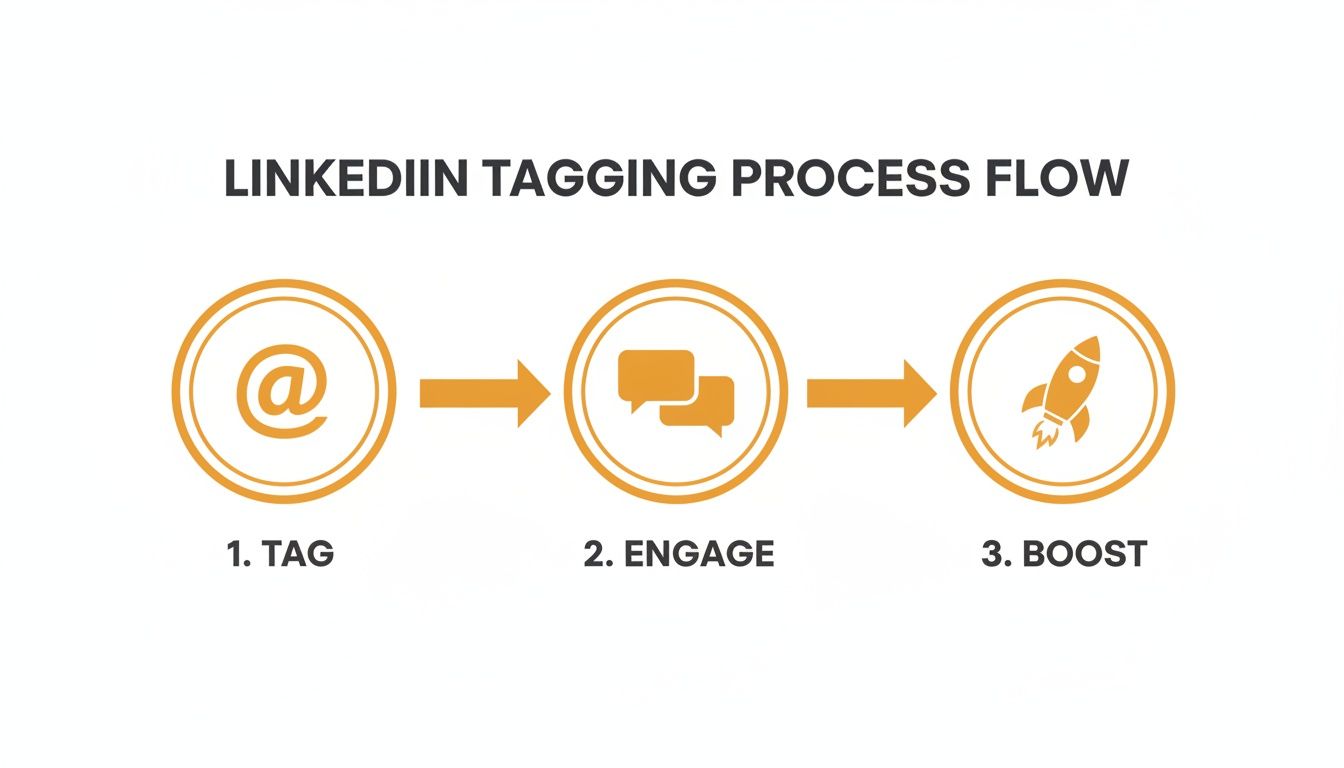
As you can see, that one little tag is what gets the ball rolling.
Tagging on Desktop vs. Mobile
One of the best things about tagging is that it works the exact same way on your computer and your phone. No need to learn two different methods.
- On Desktop: You'll click "Start a post," write your update, and use the @ key to pull up the list of names to choose from.
- On Mobile: Just tap "Post" in the navigation bar, type what you want to say, and use the same @ symbol to find and select the person or company.
The screen looks a bit different, of course, but the core action is identical. It’s incredibly intuitive once you do it once or twice.
Pro Tip: When you're tagging a company, double-check that you're selecting its official company page. Sometimes showcase pages or employee-created pages pop up, and tagging those won't notify the right people. Making sure your own page is set up correctly is just as crucial—we have a guide on how to make a LinkedIn business page if you need a hand.
Where Else Can You Tag?
Tagging isn't just for brand-new posts. You can weave this into different parts of LinkedIn to get conversations going or give a proper shout-out.
Think about the comment section. You can pull someone into a discussion by tagging them right in your reply. Just use the same @mention process. This is my go-to move when I want to get an expert's take on something or make sure a colleague sees a super relevant thread.
And don't forget about photos! You can also tag people and companies directly in an image you upload, which adds a really nice, personal touch to your posts.
The Unwritten Rules of LinkedIn Tagging
Knowing how to tag someone is easy. The real skill is knowing when and why. Get it right, and a tag feels like a genuine shout-out. Get it wrong, and you just look spammy and self-serving. It's a fine line that can either build your network or seriously annoy it.

The golden rule is simple: relevance. Before you type that "@" symbol, stop and ask yourself, "Is this person actually involved, or will they find this genuinely useful?"
Tagging your team after a successful project launch? Perfect. You're sharing the credit where it's due. But tagging a laundry list of industry influencers hoping they’ll see your post? That's a major no-no. We call that "spam tagging," and it’s a fast track to getting ignored or even blocked. It puts the pressure on them to engage with something they have zero connection to.
Best Practices for Tagging Like a Pro
To make sure your tags are always a welcome notification, here are a few simple guidelines I always follow.
- Don't just drop a name. Always add a sentence explaining why you're tagging them. Something like, "This new perspective from @JaneDoe really made me think," or "Couldn't have hit this deadline without the amazing work from @JohnSmith."
- Keep it focused. Tagging more than five people in one post starts to look a bit desperate. A small, relevant group is always more powerful.
- Share the spotlight. If someone's article sparked an idea, tag them. If a colleague gave you a great piece of advice, tag them. It's an effortless way to build professional goodwill.
Tagging is more than a trick for visibility; it's a networking tool. When used thoughtfully, it shows respect and signals collaboration, actively strengthening your professional relationships with every mention.
This isn't just about being polite—it actually works. Sales pros with strong Social Selling Index (SSI) scores, which are often boosted by this kind of engagement, generate a whopping 45% more opportunities. That's because a thoughtful tag leads to a real conversation, something the algorithm rewards far more than a simple like. You can dig into more numbers on how tagging impacts engagement with these LinkedIn statistics.
Using Strategic Tags to Hit Your Goals
Knowing the mechanics of tagging someone on LinkedIn is the easy part. The real magic happens when you start using it with a purpose. A well-placed tag is way more than just a notification—it's a strategic move to get your message in front of the right people, build real professional relationships, and actually achieve something specific.
Think of it this way: tagging randomly is like shouting into a crowd. Tagging strategically is like tapping someone on the shoulder and starting a meaningful conversation. When you align your tags with your goals, you turn a simple LinkedIn feature into a seriously powerful tool for networking and building your personal brand.
For instance, tagging a client in a post celebrating a successful project isn't just a public shout-out; it's also powerful social proof for your business. It's these kinds of thoughtful interactions that are at the heart of what many call social selling. If you're curious how this all fits into a bigger picture, our guide on what is social selling breaks down the entire methodology.
Tagging Strategies for Different Professional Goals
Let's get practical. How does this look in the real world? It all depends on what you're trying to accomplish with your post.
Here’s a quick breakdown of how you can tailor your tagging strategy to fit some common professional goals.
| Your Goal | Who to Tag | Example Post Snippet |
|---|---|---|
| Celebrate a Team Win | Your direct teammates, your manager, and your company page. | "So proud of the team for crushing our Q3 goals on Project Falcon! Couldn't have done it without the hard work from @JaneDoe and @JohnSmith. Big thanks to @OurCompany for the support!" |
| Amplify an Event | Keynote speakers, event organizers, and industry peers you know are attending. | "Just booked my spot for the #FutureOfWork conference! Really excited to hear @IndustryInfluencer's keynote on remote team culture. Anyone else from my network going? @EventCompany, you've put together an amazing lineup!" |
| Ask an Expert a Question | A few respected thought leaders in that specific field (don't spam!). | "Just finished a fascinating article on AI in marketing. It raised a question for me about data privacy. @ExpertName, I'd love to hear your perspective on how startups can navigate this." |
| Share Industry News | The author of the article, the company featured, and a colleague who'd find it relevant. | "Great piece by @JournalistName in @Publication on the latest trends in sustainable packaging. @ColleagueName, thought you'd find this interesting for our upcoming project. The insights on @FeaturedCompany were eye-opening." |
| Showcase a Client Success | Your main point of contact at the client's company and their company page. | "It was an absolute pleasure working with @ClientName from @ClientCompany to help them achieve a 25% increase in lead gen. We love seeing our partners succeed!" |
As you can see, a little bit of intention goes a long way. This ensures your tags always add value instead of just creating noise. For even more inspiration, you can explore other strategic social media content ideas that work beautifully with a smart tagging plan.
The most effective tags feel less like a broadcast and more like the start of a meaningful, one-on-one conversation. They show you’re paying attention and value the other person's contribution or opinion.
Fixing Common LinkedIn Tagging Problems
We’ve all been there. You type the "@" symbol, start spelling out a name, and... nothing. The person you’re trying to tag is nowhere to be found. It’s one of the most common frustrations on LinkedIn, but don't worry, the fix is usually pretty simple.
More often than not, the person you’re trying to tag simply has their privacy settings locked down to prevent it. If that’s the case, there’s not much you can do besides respecting their choice. Another, less common reason is that you might not be connected to them, but LinkedIn's pretty good about letting you tag 2nd and 3rd-degree connections.
When the Right Name Won't Show Up
So, you're pretty sure they allow tags but their name just won't pop up. Before you give up, try these quick tricks:
Get more specific. If you're looking for "John Smith," you'll get a million results. Try adding more detail right after the name, like his company or a keyword from his headline. For example, typing "@John Smith marketing director" can help LinkedIn pinpoint exactly who you mean.
Check for typos. It sounds obvious, but you’d be surprised how often a simple spelling mistake is the real enemy. Give their first and last name a quick once-over.
Sometimes the tag looks perfect while you're writing the post, but as soon as you hit "Publish," it's just plain text—not a clickable link. This is usually just a temporary glitch on LinkedIn's end. Your best bet is to pop back in, edit the post, delete the busted tag, and try adding it again.
A big shift has happened with the platform's algorithm. LinkedIn now gives more weight to @mentions than hashtags when deciding who sees your content. We've seen businesses posting just 1-2 times a week with smart tagging double their engagement and see 7x faster follower growth. You can dive deeper into how the LinkedIn algorithm works for even more insights.
Your LinkedIn Tagging Questions Answered
Let's clear up a few of the common questions I hear all the time about tagging on LinkedIn. Think of this as your quick-reference guide for handling any tagging scenario like a pro.
One of the big ones is, "How many people should I actually tag?" While you can technically tag up to 30 people in a photo, for a post, that's just overkill. My rule of thumb? Aim for no more than five highly relevant tags.
This keeps your post looking clean and focused. It signals to LinkedIn that you're trying to have a real conversation, not just spamming for attention.
Answering Your Top Tagging Queries
So what happens if you try to tag someone and it doesn't work? It's usually a privacy setting. If someone has turned off the ability for others to mention or tag them in their "Visibility" settings, your tag just won't go through. Their name will show up as plain text, not a clickable link.
The real difference between tagging a person and a company page comes down to notification and network effect. Tagging a person notifies them directly, inviting personal engagement. Tagging a company page notifies its administrators and associates your post with their brand, potentially reaching a broader, brand-focused audience.
You can also tag people directly in photos, which is a great way to give credit. But what about videos? You can't tag in the video itself. The best way to handle this is to simply tag the relevant people or companies right in the text description of your post. They'll still get the notification and can jump into the conversation.
Knowing these little details helps you use tags way more effectively. Each one has a specific job, whether it's giving a colleague a shout-out or looping in a whole company on a big announcement.
Ready to stop staring at a blank screen and start creating high-impact LinkedIn content in minutes? RedactAI analyzes your unique professional voice to generate post drafts that sound just like you. Join over 21,000 creators and craft your next viral post with one click at https://redactai.io.