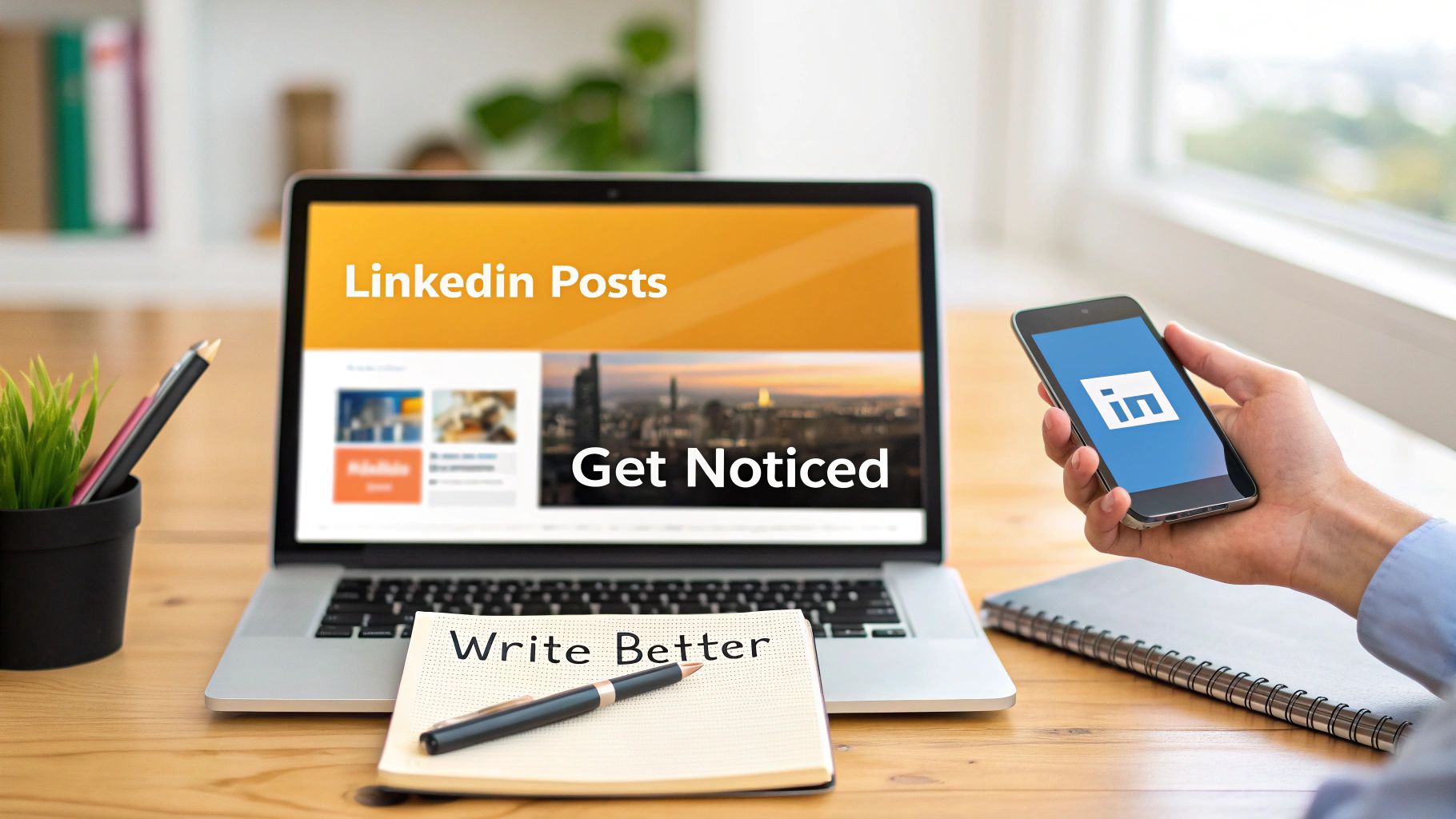
You’ve got a post ready, a page you want people to visit, and one annoying question sitting in the middle of it all: how do you post a link on LinkedIn without making the post feel clunky or killing performance?
The mechanical answer is easy. Paste a URL and publish.
The useful answer is more nuanced. On LinkedIn, the way you place the link changes how the post looks, how people interact with it, and sometimes how far it spreads. If you’re managing a founder account, an executive profile, or your own personal brand, those details matter.
The Fundamentals of Posting a Link on LinkedIn
If someone on your team asks, “how do you post a link on linkedin,” this is the cleanest answer.
On desktop:
- Open LinkedIn and click Start a post.
- Write the main body of your post first.
- Paste the full URL into the post editor.
- Wait a moment while LinkedIn generates the preview card.
- Check the post visually, then click Post.
On mobile, the process is nearly identical:
- Open the LinkedIn app.
- Tap Post.
- Write your caption or main post copy.
- Paste the full URL.
- Let the preview load.
- Publish.

What LinkedIn does automatically
When you paste a URL into a LinkedIn post, the platform can generate a clickable preview that pulls in the page image, title, and description. According to MobiloCard’s write-up on adding links to LinkedIn posts, LinkedIn lets you paste full URLs directly into the editor and generate that preview automatically.
That matters because the preview gives people more context before they click.
The simplest rule that saves most bad link posts
Write the value first. Add the link second.
A lot of weak LinkedIn posts happen because people lead with the URL, then try to reverse-engineer a caption around it. That’s how you get lazy posts like “New blog is live” followed by a link. Nobody cares yet.
Practical rule: Treat the link as the next step, not the whole post.
If you regularly work across platforms, it also helps to understand the true meaning of 'link in bio'. LinkedIn behaves differently from Instagram-style link habits, so carrying over the same posting logic makes the content feel off.
For a stronger posting flow in general, this walkthrough on https://redactai.io/blog/how-to-post-on-linkedin is useful because it focuses on building the post itself, not just dropping the URL in.
Troubleshooting and Customizing Your Link Preview
You paste a link, hit post, and the preview shows the wrong image, an old headline, or nothing at all. That usually is not a LinkedIn problem. It is a page metadata problem.

Why the preview looks wrong
LinkedIn builds the preview from the destination page’s metadata. In practice, that means your page controls the image, title, and description LinkedIn tries to display.
If the card looks off, I check the page before I touch the copy. Teams often waste time rewriting the post when the underlying issue is a stale featured image, missing Open Graph tags, or a tracked URL that resolves oddly on mobile.
Here’s the order that usually fixes it fastest:
- Paste the clean URL again. A fresh pull sometimes solves a one-off rendering issue.
- Give LinkedIn a moment to fetch the page. The preview does not always appear instantly.
- Open the destination page yourself. If it loads slowly, redirects twice, or shows the wrong social image, the preview will usually inherit that mess.
- Swap out tracking-heavy links when possible. A clean canonical URL is often more reliable than a long campaign link.
- Delete the preview if it weakens the post. A low-quality image or chopped headline can make a solid post look careless.
Keep the preview or remove it
This is a distribution choice as much as a design choice.
Keep the preview when the card adds context. That is usually the right call for reports, landing pages, webinars, and articles where the headline and image help qualify the click.
Remove it when the preview makes the post feel too promotional or visually messy. I do this a lot for founder posts, recruiter updates, and opinion-led content where the text needs to carry the post and the link is just the next step.
The trade-off is simple:
| Option | Best when | Trade-off |
|---|---|---|
| Keep preview | You want instant context and a visible click target | The post can feel more like a promotion |
| Remove preview | You want a cleaner, text-led post | Readers get less context before clicking |
One useful QA step is checking the post exactly how it will appear before it goes live. This guide on previewing a LinkedIn post before publishing is useful for that. It helps catch the practical stuff, awkward line breaks, cropped images, and whether the preview supports the hook or fights it.
A quick visual walkthrough helps if you want to see the process in action:
If the preview adds clarity, keep it. If it makes the post look like a rushed ad, remove it and let the copy do the work.
Direct Post vs Link in Comments Which Strategy Wins
A post goes live at 9:00. By 9:05, someone on the team is asking the same question every LinkedIn manager gets asked: should the link sit in the post, or should we hide it in the first comment and hope for more reach?
The honest answer is less tidy than people want. Both methods work. The better choice depends on what you need from that specific post: easier clicks, broader early distribution, cleaner discussion, or less operational risk.

Direct post: better for clarity and lower friction
Use a direct link when the click matters more than the feed mechanics.
This is usually the safer option for webinar registrations, product pages, booking links, reports, and any campaign where losing even a few interested people in the comments is expensive. The path is obvious. People see the post, understand the offer, and click.
It also reduces execution mistakes. No one forgets to add the comment. No one pastes the wrong URL under pressure. No one leaves a good post sitting linkless for twenty minutes because they got pulled into Slack.
I also prefer direct links on posts from executives or brand accounts when the audience is already warm. Those readers are not playing detective. If they want the resource, they expect to access it immediately.
Link in comments: better for reach tests and discussion-led posts
The first-comment method is still useful, but only when the post itself can carry interest without the URL doing the heavy lifting.
According to Pursue Networking’s 2024-2025 benchmarks on LinkedIn link sharing, posts using the link in comment method can achieve higher initial reach, while the click-through rate difference versus direct links is relatively small. That aligns with what many social teams see in practice. A post that reads like native LinkedIn content often gets a better first wave of distribution.
That makes the comment method a reasonable choice for founder takes, hiring posts, strong opinion posts, and conversation starters where the main goal is to get replies first and send traffic second.
There is a catch. The comment has to go up fast, and it has to add context. A lazy “link here” comment wastes the whole setup.
The trade-off in plain terms
Here’s the decision frame I use:
| Goal | Better option | Why |
|---|---|---|
| Get the easiest possible click | Direct post | Fewer steps between interest and action |
| Test for stronger early reach | Link in comments | The post can feel more native in the feed |
| Start discussion before sending people away | Link in comments | Readers stay in the thread first |
| Push a time-sensitive offer | Direct post | Speed matters more than extra reach |
That is the fundamental trade-off. Reach versus friction. Native feel versus click convenience. There is no permanent winner.
Teams get in trouble when they try to make one rule cover every post type. A hiring update, a thought-leadership post, and a campaign asset should not all use the same link strategy. If your team is also trying to improve interaction quality around these posts, this guide on how to increase social media engagement is a useful complement to the traffic side of the decision.
What I would tell a new team member
Start with direct links unless there is a clear reason not to.
Then use the first-comment method when all three conditions are true: the post has a strong hook on its own, the comments matter to the goal, and someone is available to publish the comment immediately and monitor replies. If one of those conditions is missing, the “reach hack” usually turns into a sloppy user experience.
This is also where a modern AI workflow helps. The hard part is rarely pasting the URL. The hard part is writing copy that earns the click whichever method you choose. I use AI tools such as RedactAI to draft several versions of the hook, test whether the post can stand on its own without the visible link, and tighten the comment copy if we go with the first-comment approach.
Method matters. Execution decides the result.
Pro Tips to Make Your LinkedIn Links Irresistible
A LinkedIn post can have a strong article behind it and still get ignored. I see this happen when the post asks for a click before it earns attention.
Good link posts do two jobs at once. They give the reader something useful in the feed, then make the link feel like the obvious next step.
Lead with the outcome, not the announcement
“New article is live” gives nobody a reason to care.
Write the post around the payoff:
- Weak: “New article is live.”
- Stronger: “We kept seeing the same pipeline mistake, so I wrote up the fix.”
- Stronger still: “If deals keep stalling after the first call, this guide shows what to tighten before the next one.”
That is the standard. State the problem, name the benefit, then place the link in context.
In practice, I use a simple test. If the first two lines do not tell a busy reader what they will get, the link is going to underperform no matter where you place it.
Make the link feel earned
LinkedIn users respond better when the post gives them a real takeaway before asking for the click. That does not mean giving away the whole article. It means proving the click is worth their time.
A reliable structure looks like this:
- Open with a specific problem
- Share one useful insight or observation
- Position the link as the fuller explanation
- End with one clear CTA
Example:
Teams publish a link, add one vague sentence, and wonder why traffic stays flat. The fix is usually simple. Put the takeaway in the post and use the article for the full method. Full framework here: [URL]
This format works because it reduces friction. The reader already understands why the resource matters.
If you use comments, write the comment like copy
The first-comment approach fails when the comment looks lazy. “Link: [URL]” reads like an afterthought.
According to LigoSocial’s guide to LinkedIn links, posts perform better when the link is introduced with context instead of dropped in as a bare URL. That matches what I have seen in team workflows. A short sentence explaining what the reader will find usually beats a plain pasted link.
Use:
- Weak: “Link: example.com/guide”
- Better: “The full guide with examples is here: example.com/guide”
- Best: “If you want the full framework and examples behind this process, use this guide: example.com/guide”
The difference is small, but the effect is real. Context improves clicks because it answers the question that matters. Why should I open this?
Clean up the post after the writing is done
Copy gets attention. Setup tells you whether the post worked.
Check these before publishing:
- UTM parameters so your traffic is attributed correctly
- Shortened URLs if the raw link looks messy or distracts from the post
- One CTA so readers know the next step
Teams often hurt performance by cramming in too many asks. Read the article. Leave a comment. Book a demo. Share with your team. Pick one.
If your goal is stronger response on the post itself, not just more traffic, this guide on how to increase social media engagement is a useful companion.
Use AI to improve the copy, not to flatten it
AI helps most at the draft stage. It is useful for generating angles, tightening hooks, and adapting the same link for different posting styles. It is less useful if you ask for a generic “LinkedIn post” and publish the first output untouched.
A better workflow is to start with the URL, the audience, and the specific result you want from the click. Then generate a few variations and edit for voice. If you want a faster drafting process, a LinkedIn post generator built for link-led posts can help you test several hooks before you schedule anything.
That is the practical rule I give new team members. Spend more time on the promise around the link than on the link itself. That is usually where the click is won or lost.
Generate and Schedule Link Posts in Minutes with RedactAI
The hard part of LinkedIn link posting seldom is the link. It’s the copy.
Many individuals can paste a URL. What slows them down is writing a post that sounds credible, fits their voice, and gives the audience a real reason to click. That’s where a structured AI workflow helps.

A practical workflow that saves time
The cleanest setup is simple:
- Start with the URL you want to share or the core topic behind it.
- Pull out the actual angle. What is the post about?
- Generate a few draft variations.
- Pick the one that sounds most like you.
- Schedule it so you’re not writing in a rush five minutes before publishing.
That matters because rushed link posts often read like ads. The post ends up carrying no opinion, no tension, and no reason to engage.
What AI should help with
A good workflow doesn’t ask AI to “write a LinkedIn post” in the abstract. It asks for something more useful:
- Turn this blog URL into 3 LinkedIn post angles
- Write one version for a founder voice and one for a sales leader
- Give me a direct-link version and a link-in-comment version
- Rewrite this so it sounds less promotional
Those prompts are practical because they force the tool to solve the actual problem, which is framing.
If you want examples of that approach, the post generator walkthrough at https://redactai.io/blog/linkedin-post-generator shows how to move from an idea to ready-to-publish drafts faster.
Why scheduling matters for link posts
Scheduling isn’t about convenience alone. It helps you separate writing from publishing.
When those happen at the same time, people make bad decisions. They overstuff the post, forget the comment strategy, skip proofreading, or publish a preview that looks broken.
A scheduled workflow gives you room to check:
| Before scheduling | Before publishing |
|---|---|
| Is the hook strong enough? | Does the preview look right? |
| Is the CTA specific? | Is the link in the correct place? |
| Does the post sound like a human? | If using comments, is the comment copy ready? |
That’s the difference between “posted a link” and “ran a good LinkedIn post.”
The best process is boring in a good way. Draft. refine. schedule. check the preview. publish. Then monitor comments and traffic instead of guessing what worked.
If you want a faster way to turn a URL or rough idea into polished LinkedIn posts, RedactAI is built for that workflow. It helps you generate value-first drafts, match your voice, and schedule posts without the usual last-minute scramble.