You save a LinkedIn post because it's good. Then the feed moves on, your day gets busy, and that post disappears into the same mental drawer as “articles I should read” and “ideas I should use someday.”
That's the core problem with the save post LinkedIn feature. Saving is easy. Turning saved posts into something useful is the hard part.
Used casually, it becomes a pile of bookmarks. Used well, it becomes a working library for content ideas, sales language, hiring insights, and examples you can reuse when you need to write something smart fast.
Why Saving Posts on LinkedIn Matters More Than Ever
A LinkedIn save is often treated like a private like button. It's more useful than that.
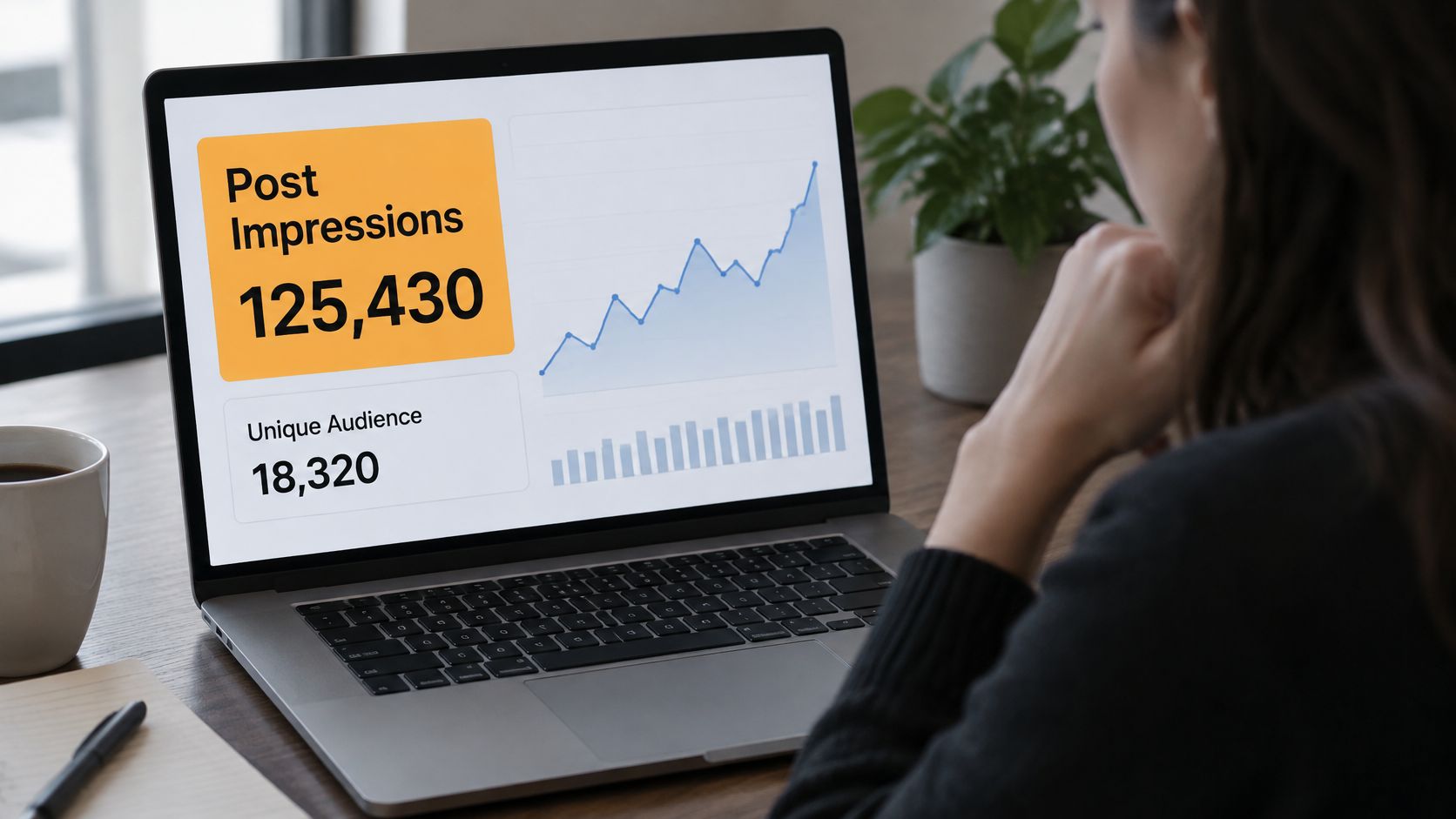
LinkedIn now includes Saves and Sends in post analytics, which gives creators visibility into private bookmarking and private sharing behavior, as noted in Social Media Today's coverage of LinkedIn's analytics update. That matters because a save usually means someone wants to revisit the post later, not just acknowledge it in public.

A like is quick. A save is intentional. When someone bookmarks a framework, a hiring insight, a sales script, or a sharp industry take, they're saying, “I may need this again.”
Why this changes how professionals should use LinkedIn
If you publish on LinkedIn, saves tell you which posts people consider reference material. If you consume content on LinkedIn, saving helps you build that reference material for yourself.
That's why the strongest LinkedIn users don't just scroll. They collect. Then they organize what they collect.
Practical rule: Save anything you'd want to quote, adapt, study, or send to a teammate next week. If you wouldn't use it again, don't save it.
This matters across roles. A founder might save product positioning posts. A recruiter might save outreach examples. A marketer might save hooks, structure, and proof formats. Teams working in niche sectors can also study how peers communicate. If that's relevant to your world, this breakdown of how manufacturers use LinkedIn marketing is worth reviewing because it shows how industry-specific messaging gets applied.
There's also a content strategy angle. Your saved posts become evidence of what your market finds useful, clear, and repeatable. That's a better starting point than staring at a blank draft. If you want to tighten that broader system, this guide to LinkedIn content strategy is a useful companion.
The Mechanics of Saving and Unsving a LinkedIn Post
The actual save post LinkedIn action is simple. That's part of the appeal.
LinkedIn's native workflow is basically a two-step action: open the three-dot menu on a post and choose Save, then find it later in Saved Items or My Items, as shown in this walkthrough of LinkedIn's native save flow. The catch is that saved posts can sit alongside other saved items, including jobs, which gets messy fast.

On desktop
When you see a post you want to keep, look at the top right corner of that post. Click the three-dot menu. Then choose Save post.
If you want to remove it later, repeat the same action and choose Unsave post. There's no complicated workflow. That's why many people never develop a better system. Saving becomes reflexive, but retrieval stays sloppy.
On iPhone
In the LinkedIn app, open your feed and find the post. Tap the three-dot menu on the post card, then tap Save post.
To reverse it, open that same menu again and tap Unsave post. If you're using LinkedIn heavily on mobile, this is the version you'll probably use most often, which makes discipline even more important.
On Android
The Android flow is almost identical. Open the post, tap the three dots, choose Save post, and move on.
To unsave, go back through the same menu and remove it. LinkedIn keeps the interaction lightweight, which is convenient in the moment but easy to abuse.
Save should mean “I will use this.” It shouldn't mean “I'm mildly interested and don't want to decide.”
What works and what doesn't
A good native saving habit looks like this:
- Save useful posts fast: Great for checklists, frameworks, hiring examples, messaging patterns, and strong comment-worthy takes.
- Unsave after use: If you already applied the idea, clear it out.
- Keep the threshold high: Don't save generic inspiration you'll never revisit.
What usually fails looks different:
- Saving every decent post: That turns your list into digital attic space.
- Using LinkedIn as your only archive: Fine for a few items, weak for ongoing research.
- Never reviewing saved items: Then the feature becomes a placebo for productivity.
Finding Your Hidden Treasure Chest of Saved Posts
Saving a post is obvious. Finding it later isn't.
LinkedIn has buried Saved Items in menus that many users don't check regularly, and the platform still doesn't offer advanced organization features like tags or folders, which makes retrieval harder at volume, as described in this guide to LinkedIn saved posts and their limitations.

Where to find saved posts on desktop
On desktop, the usual path runs through your profile area and resources section until you reach Saved items or My Items. The exact labels can shift slightly, but the experience is consistent in one frustrating way. LinkedIn doesn't surface saved posts prominently.
Once you're there, expect to see different saved content types together. That's the part many people dislike. Posts don't always live in a clean, post-only workspace.
Where to find them on mobile
On mobile, open your profile menu first. Then look for the saved-content area from there.
This is one of those features that feels simple only after you've found it a few times. Until then, it feels oddly hidden for something people use often.
If you also want a cleaner way to review your own publishing history while you build a better workflow, this guide on how to see my LinkedIn posts helps with the creator side of the equation.
A quick visual walkthrough helps if LinkedIn's menus are shifting on your device:
The limitation you should accept early
Native saved items are fine for light use. They're weak for active research.
Here's what LinkedIn doesn't give you well inside the platform:
- Tagging by topic: You can't neatly separate sales posts from leadership posts or content examples.
- Searchable notes: You can't attach your own “why this matters” thinking in a useful way.
- Triage views: There's no strong system for “use this soon” versus “archive for later.”
The save button solves collection. It doesn't solve retrieval.
That distinction matters a lot once you've saved more than a small handful of posts.
From Bookmark to Content Engine Your Advanced Strategy
The jump from casual user to effective user happens when you stop treating saved posts as bookmarks and start treating them as inputs.
A scalable method is to capture each saved post as a record with the post URL, tags, a save date, and implementation notes in a separate database such as Notion, as explained in this structured workflow for organizing LinkedIn saved posts with Notion. That small shift changes everything. Now the post is searchable, sortable, and reusable.

A simple structure that actually works
You don't need a complicated database. A practical setup only needs a few fields.
| Field | What to store |
|---|---|
| Post URL | The direct LinkedIn link |
| Topic tag | Sales, hiring, founder story, hooks, frameworks, objections |
| Format tag | Text post, story post, contrarian take, checklist |
| Save date | When you captured it |
| Why it mattered | Your note on the hook, structure, CTA, or insight |
| Reuse idea | How you might apply it in your own work |
Saved posts become highly valuable. You're no longer just collecting content. You're collecting patterns.
What to capture from each post
A post doesn't need to be copied word for word to be useful. Usually, the reusable part is one of these:
- The opening: A strong first line that creates curiosity without sounding gimmicky.
- The structure: Problem, example, lesson, takeaway. Or story, mistake, fix.
- The framing: How the author made a familiar point feel fresh.
- The specificity: The detail that made the post feel grounded instead of generic.
Use this filter: Don't ask “Was this good?” Ask “What exactly made this save-worthy?”
That question is where content ideation gets easier.
Turning saved posts into drafts
This is also where a tool can help. Some people move saved posts into Notion and write manually from there. Others use prompts in ChatGPT. If you want a workflow built around LinkedIn drafting specifically, RedactAI can use a prompt, link, draft, or recycled idea to generate multiple LinkedIn post versions in a style aligned to your profile and posting history.
The useful move isn't copying someone else's post. It's extracting the mechanism behind it. Save a sharp customer-story format. Tag it. Note why it worked. Then turn that structure into your own post about a real experience.
This mindset also helps outside organic posting. If you work on paid distribution too, these principles overlap with messaging analysis and creative review. That's why resources on optimizing your LinkedIn campaigns can be useful even for organic-first teams. The same disciplined attention to audience language matters in both places.
Troubleshooting Common Save Post Issues
Sometimes the save option seems missing. Sometimes your saved list feels useless. Usually the issue isn't a broken feature. It's a mismatch between what LinkedIn's native tool does well and what you expect it to do.
One common assumption is that saving is enough. It isn't. Saving collects. A workflow organizes.
If the save option seems to disappear
Start with the simplest explanation. Not every piece of content behaves the same way in LinkedIn's interface. If you don't see a save action where you expected it, refresh, check whether you're looking at a post format that presents differently, or open the content in its direct post view.
If that still doesn't help, move on rather than wrestling with it. A screenshot, copied post URL, or manual note is often faster than trying to force LinkedIn's UI to cooperate.
If your saved items are a mess
That's normal once your list gets crowded.
Try this cleanup pass:
- Archive by action: Unsave anything you already used.
- Promote high-value posts: Move the important ones into your external system.
- Delete weak saves: If you can't explain why you saved it, remove it.
If you publish and want more saves on your own posts
The better question isn't “How do I get more likes?” It's “What would make someone keep this?”
AuthoredUp's roundup reports that content with saves has a strong future-distribution effect, including an estimated 90% chance that someone will see the next post from an author whose content they've saved, according to this LinkedIn post statistics analysis. That's why practical frameworks, checklists, templates, and tactical lessons tend to matter so much. People save what they expect to reuse.
If you're cleaning up your publishing footprint while improving what you keep and what you remove, this guide on how to remove a post on LinkedIn is a useful reference.
Save-worthy content usually has three traits. It solves a real problem, it's easy to return to, and it gives the reader something they can apply.
If you want a faster way to turn saved LinkedIn ideas into usable drafts, RedactAI can fit into that workflow. Use your saved posts as inputs, extract the angle or structure that worked, and turn those notes into new LinkedIn drafts without starting from a blank page every time.